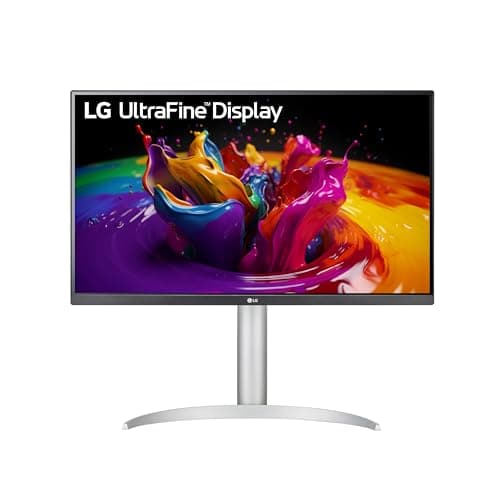
The Complete MacBook Home-Office Setup (2026)
A MacBook desktop is built around one Thunderbolt cable: the dock decides how many displays, how much charging, and which peripherals the Mac can drive — so choose it first, then hang the 5K display, color tools, KVM, and keyboard off that one call.
This article contains affiliate links. We may earn a commission at no extra cost to you. Learn more
Featured in this Guide
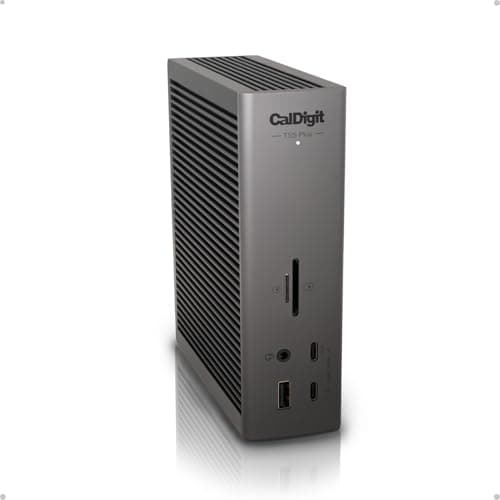
CalDigit
TS5 Plus Thunderbolt 5 Dock
- •The Thunderbolt 5 flagship spine: 140W charging
- •DisplayPort 2.1
- •and dual 8K output for a Mac desk with the widest ceiling.
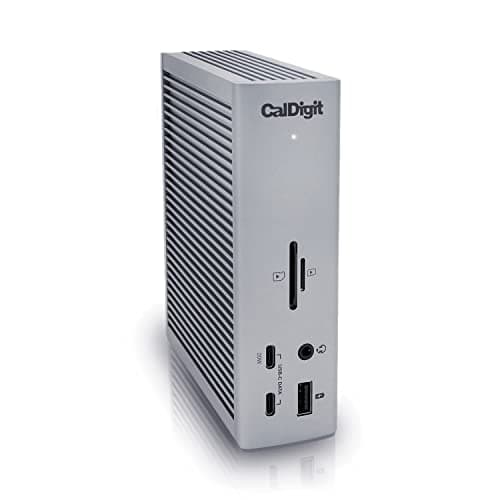
CalDigit
Thunderbolt Station 4 (TS4)
- •Thunderbolt 4
- •native dual 6K
- •and 98W hold most MacBooks on one cable without the TB5 premium you cannot yet use.
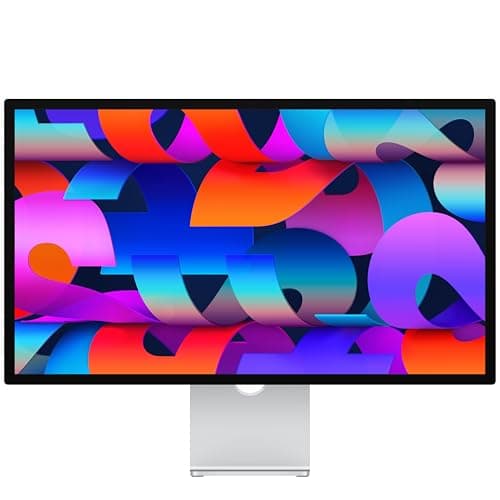
Apple
Studio Display (Standard Glass, Tilt-Adjustable Stand)
- •Native 5K over one Thunderbolt cable means no fractional-scaling blur; camera
- •speakers
- •and mics fold into the panel.
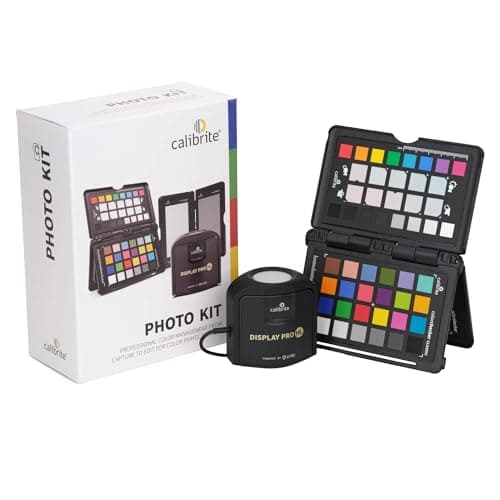
Calibrite
Photo Kit with Display Pro HL Colorimeter
- •A high-luminance sensor that makes any external Mac display true for photo and video
- •with a ColorChecker for cameras.
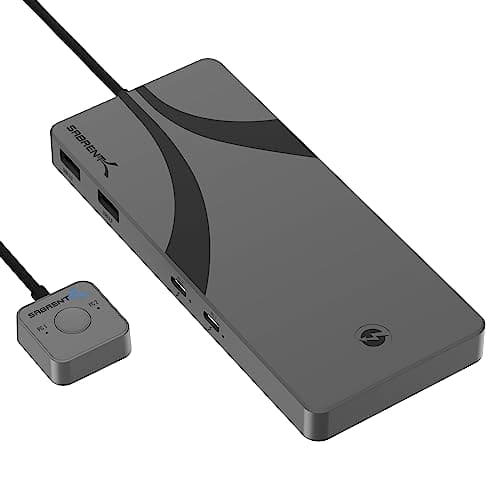
Sabrent
Thunderbolt 4 KVM Switch (SB-TB4K)
- •TB4-native switching shares one keyboard
- •mouse
- •and display between a Mac and a work PC at 40Gbps
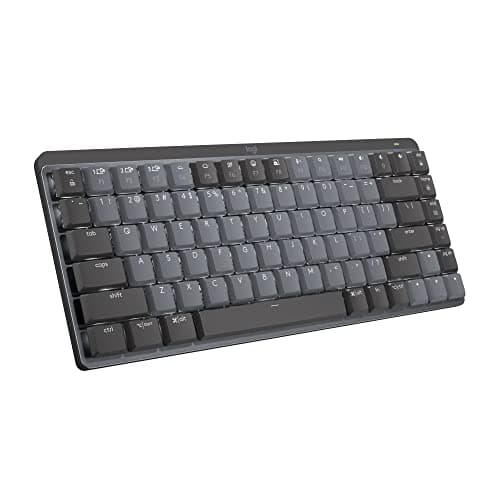
Logitech
MX Mechanical Mini
- •A Mac-layout mechanical board that pairs across three machines with Options+ remapping — the input the stack deserves.
The Short Answer
A MacBook home office is best built around a single Thunderbolt cable: pick the dock first because it sets display count, charging headroom, and peripheral support, then add the display, colorimeter, KVM, and Mac keyboard off that one decision so nothing bought first gets stranded by a dock that cannot feed it.
A MacBook home office is built around a single Thunderbolt cable, because that one connection decides how many displays the Mac can drive, how much charging power reaches the laptop, and which peripherals reach the desk — so the dock is the first buy, and everything else hangs off it. Get that order wrong and a display or KVM bought first can be stranded by a dock that cannot feed it. The weighted DeskGear MacBook Setup Score ranks each pick on four factors — Mac integration, performance headroom, value, and expandability — and the composite leans hardest on how natively a piece plugs into an Apple-Silicon Mac. Category coverage from AppleInsider, Macworld, and The Verge backs the same logic. The display can run past 4x the value dock, so prices list around the figures shown as of July 2026 and move often — confirm the live total before buying.
The Mac stack, side by side
Input & Connectivity
Chart
 DeskGearHQ.com
Best overall dock: CalDigit TS5 Plus Thunderbolt 5 Dock
CalDigit TS5 Plus Thunderbolt 5 Dock
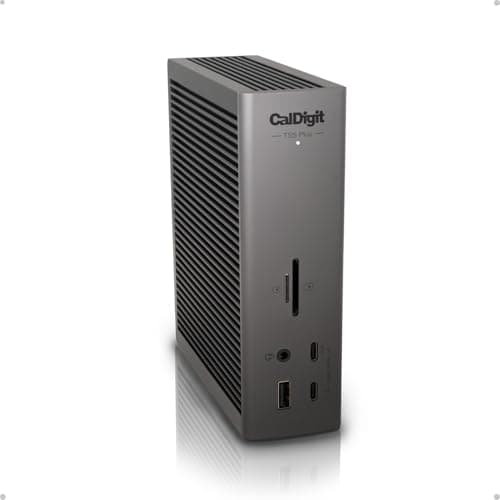
(Current price, subject to change)
AppleInsider and Macworld both treat CalDigit's TS5 Plus as the reference Thunderbolt 5 dock, and for a Mac desk it is the spine the rest of the stack plugs into. The weighted, composite DeskGear MacBook Setup Score rewards it on Mac integration: a single Thunderbolt cable carries dual displays and 140W back to the laptop, so the whole desk collapses to one connection. DisplayPort 2.1 is the quiet advantage here, since it drives a monitor natively without spending a Thunderbolt port, and compared to the 2.5GbE most rivals stop at, its 10 Gigabit Ethernet moves NAS pulls faster. It runs about 1.3x the value dock and roughly 3.4x the keyboard, so it earns its price only on headroom you will actually use. Reviewers did measure the chassis reaching the low 40s Celsius under sustained load, an honest note for an all-day desk dock. Against the value pick, the decision is straightforward: the best Thunderbolt 5 docks guide ranks the flagship field, but the CalDigit Thunderbolt Station 4 (TS4) delivers the same one-cable Mac experience for less unless you can name a use for 8K output or a 10-gig network.
What We Love
- Thunderbolt 5 host feeds dual 8K@60Hz or dual 4K@240Hz — the widest display ceiling in this stack
- 140W host charging from a 330W supply runs every powered port without throttling the Mac
- DisplayPort 2.1 gives a native monitor connection that spares a Thunderbolt port for storage
- 20 ports including 10 Gigabit Ethernet — a step past the 2.5GbE most rivals stop at
What Could Be Better
- $499.99 is among the priciest docks on the market
- More ports than most single-Mac desks will ever plug in
The Verdict
If you're building the Mac desk around one cable and want the widest ceiling, the CalDigit TS5 Plus Thunderbolt 5 Dock fits the brief without compromise. The 9.0 reflects a Thunderbolt 5 host, 140W charging, DisplayPort 2.1, and dual 8K output — the spine everything else hangs off. The value-tier TS4 covers most MacBooks for less, so this earns its price only when you'll use the headroom.
Best value dock: CalDigit Thunderbolt Station 4 (TS4)
CalDigit Thunderbolt Station 4 (TS4)
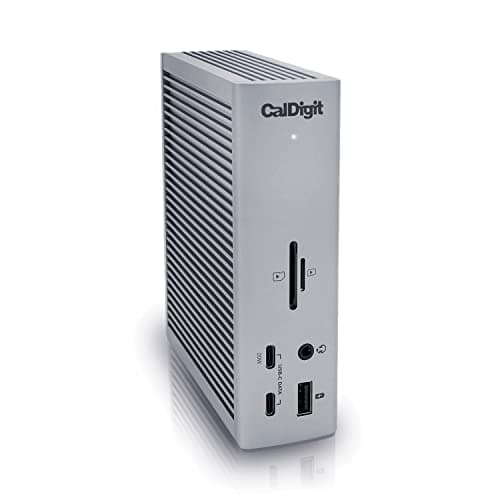
(Current price, subject to change)
TechRadar and AppleInsider both slot the CalDigit TS4 as the Thunderbolt 4 benchmark, and for most MacBooks it is the practical anchor of the whole setup. At roughly 2.6x the price of the keyboard, and with the flagship dock listing about 1.3x higher, this value pick still tops the composite ranking. One TB4 cable delivers native dual 6K and 98W back to the laptop, while the 18-port layout — Thunderbolt, USB-C, USB-A, 2.5GbE, and dual card readers — means the desk stops accumulating dongles. macOS detects it instantly with firmware optional, which is precisely the plug-in effort a discerning Mac buyer is really paying for. The honest ceiling is charging: 98W comfortably holds a 14-inch Pro through a lengthy export, but a 16-inch Pro Max that draws toward 140W wants the TB5 dock's larger supply. For anyone below that demanding line, this dock quietly finishes the workday without ever asking for attention; the best Thunderbolt 4 docks guide ranks nine more competitors, but for a base or 14-inch Mac, this remains the recommendation.
What We Love
- 18 ports is the highest verified count in the Thunderbolt 4 class — the desk stops needing adapters
- 98W sustained charging holds a 14-inch MacBook Pro at full CPU and GPU load, not just at idle
- Native dual 6K@60Hz over TB4 with zero DisplayLink drivers or compatibility overhead
- 2.5GbE Ethernet meaningfully beats gigabit for NAS transfers and wired calls
What Could Be Better
- The 18-port layout is real overkill for a two-monitor-and-keyboard desk
- 98W does not fully cover a 140W MacBook Pro Max charging spec under peak draw
The Verdict
If your MacBook is an M-series Air or a 14-inch Pro, the CalDigit Thunderbolt Station 4 (TS4) lines up with what you actually need. Native dual 6K, 98W that holds a 14-inch under load, and 18 ports mean one cable runs the whole desk with no Thunderbolt 5 premium you can't yet use. This is the dock to start the build on for most Macs, no need to overthink it.
5K retina display: Apple Studio Display (Standard Glass, Tilt-Adjustable Stand)
Apple Studio Display (Standard Glass, Tilt-Adjustable Stand)
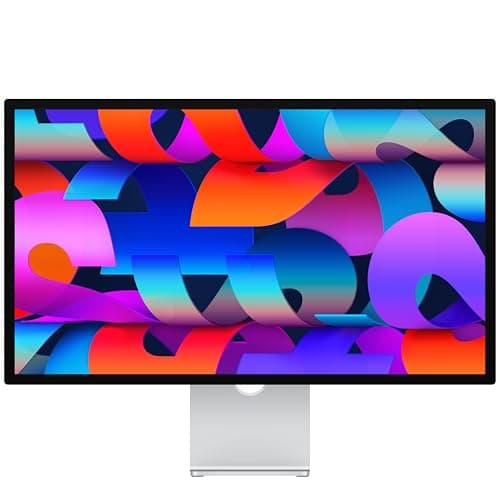
(Current price, subject to change)
Macworld and The Verge keep the Apple Studio Display on the shortlist for one reason a Mac owner feels immediately: native 5K resolution lands exactly on the pixel density macOS scales to, so text renders crisp without the fractional-scaling softness a lower-resolution panel shows on a Mac. A single Thunderbolt cable delivers power to the MacBook and carries video, and the panel folds in a Center Stage camera, a six-speaker array, and studio-grade mics that replace a separate call rig. The weighted DeskGear MacBook Setup Score rates it high on Mac integration and dings the value factor hard, which is the whole story at this tier. It lists around $1,599 — the $1,539 seen this week is a July-4 tail — roughly 3.1x the flagship dock and more than 10x the keyboard, and versus a 4K USB-C monitor doing the same one-cable job for far less, you pay for native density. There is no HDR, no local dimming, and no height adjustment on this stand, so the best 5K and 6K monitors for Mac guide is the place to weigh the alternatives. The trade is plain: you pay a premium and lose HDR to get scaling that never looks soft.
What We Love
- Native 27-inch 5K at 218 ppi matches macOS default scaling with no fractional-scaling blur
- One Thunderbolt cable charges the MacBook and drives the display, plus three downstream USB-C ports
- 600 nits, P3 wide color, and True Tone cover office and photo work out of the box
- A 12MP Center Stage camera, six speakers, and three studio mics fold a whole call rig into the panel
What Could Be Better
- Lists around $1,599 — roughly three times a 4K USB-C monitor that does the same single-cable job
- 60Hz with no HDR or local dimming, and the tilt-only stand offers no height adjustment
The Verdict
If you want the panel to look right at native density and you've shortlisted an all-Apple desk, the Apple Studio Display (Standard Glass, Tilt-Adjustable Stand) fits without compromise on scaling. Native 5K over one Thunderbolt cable means no fractional-scaling blur, and the camera, speakers, and mics fold into the glass. You give up HDR and a low price — the honest trade for Retina density on a Mac.
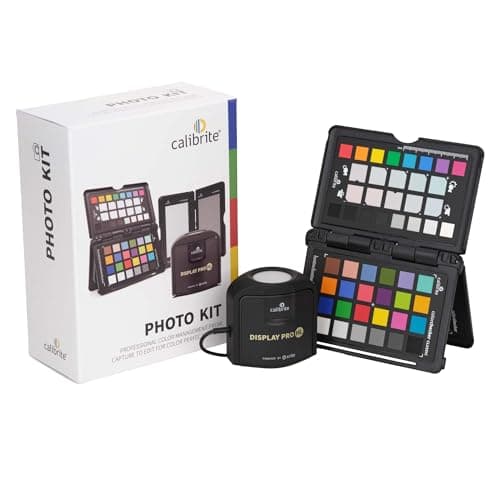
Color calibration: Calibrite Photo Kit with Display Pro HL Colorimeter
Calibrite Photo Kit with Display Pro HL Colorimeter
(Current price, subject to change)
PCWorld and TechRadar place the Display Pro HL among the strongest colorimeters for a color-critical desk, and its role in a Mac stack is specific: it makes the external display true, which enables what you edit to match what you print or publish. The high-luminance sensor reads bright mini-LED and OLED panels that trip older meters, and the bundled ColorChecker Passport closes the loop between camera and screen — the part a screen-only calibrator leaves open. Setup is a USB-C connection plus the PROFILER app, and a guided pass runs in minutes on macOS. At only about 2x the price of the keyboard, this sensor earns its place once an external panel is on the desk, though it will not calibrate a MacBook Pro's built-in Liquid Retina XDR display. For a retoucher whose day ends in a print, that is exactly the tool the workflow has been missing; the monitor-calibration colorimeters guide compares the sensors head to head.
What We Love
- The Display Pro HL sensor reads up to 3,000 nits across LCD, mini-LED, and OLED external panels
- The Photo Kit bundles a ColorChecker Passport Photo 2 for custom camera profiles and white balance
- Calibrite PROFILER adds validation and color-uniformity checks that confirm the profile actually landed
- USB-C connection with a built-in tripod thread and travel pouch for a portable Mac workflow
What Could Be Better
- It does not calibrate a MacBook Pro's built-in Liquid Retina XDR display
- Sold only as a Photo Kit bundle rather than the bare sensor on Amazon
The Verdict
For the photographer or editor whose Mac panel has to be true before a print, the Calibrite Photo Kit with Display Pro HL Colorimeter is a sensible pick for that workflow. Its high-luminance sensor profiles bright external displays and bundles a ColorChecker for camera-to-screen matching. Know that it won't calibrate a MacBook's built-in Retina XDR screen — plan around that one limit.
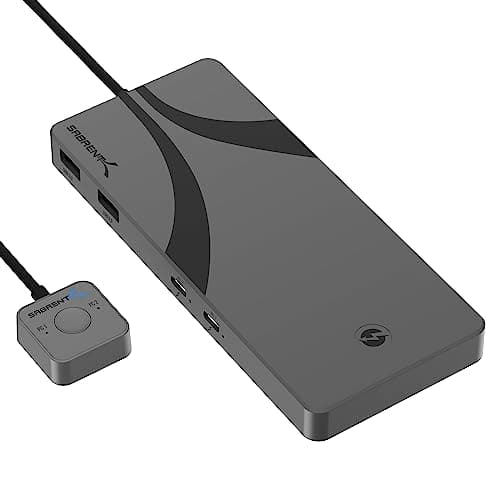
Mac + PC KVM: Sabrent Thunderbolt 4 KVM Switch (SB-TB4K)
Sabrent Thunderbolt 4 KVM Switch (SB-TB4K)
(Current price, subject to change)
TechRadar and The Verge both frame the Sabrent SB-TB4K as the clean answer to a two-machine desk, and on a Mac stack it solves the exact problem a dock cannot. TB4-native switching delivers one monitor, keyboard, and mouse between a Mac and a PC at full 40Gbps, so neither machine drops to a compressed DisplayLink path. EDID emulation is the feature that makes it livable day to day, because the display never renegotiates into a black-screen flicker when you flip between systems, and dual 60W PD keeps both laptops topped up. The honest counterweight is price and scope: at $299.89, about 2x the keyboard and a real premium versus an HDMI KVM, it stops at two machines. But for a developer or hybrid worker who wants the same screen and board for both computers without a driver layer, this is the piece that ties the desk together; the KVM switches for Mac and PC guide ranks the field. You accept the Thunderbolt premium to keep both machines native — the right trade for a dual-Mac-and-PC desk.
What We Love
- TB4-native 40Gbps switching — no DisplayLink drivers or compatibility overhead on Mac or Windows
- 60W Power Delivery on both host ports at once, rare at this protocol tier
- EDID emulation prevents a black-screen renegotiation each time you switch machines
- USB 3.2x2 10Gbps peripheral ports are fast enough for audio interfaces and external SSDs
What Could Be Better
- $299.89 is a real premium over HDMI KVM alternatives in the same category
- The 2-port limit means a three-machine setup needs a different tier
The Verdict
If your desk runs both a Mac and a work PC, the Sabrent Thunderbolt 4 KVM Switch (SB-TB4K) fits the brief without a DisplayLink layer. TB4-native switching hands one display, keyboard, and mouse between the two at 40Gbps, and EDID emulation skips the black-screen dance on every switch. You pay a premium over HDMI KVMs — the price of native Thunderbolt bandwidth for a dual-machine desk.
Mac keyboard: Logitech MX Mechanical Mini
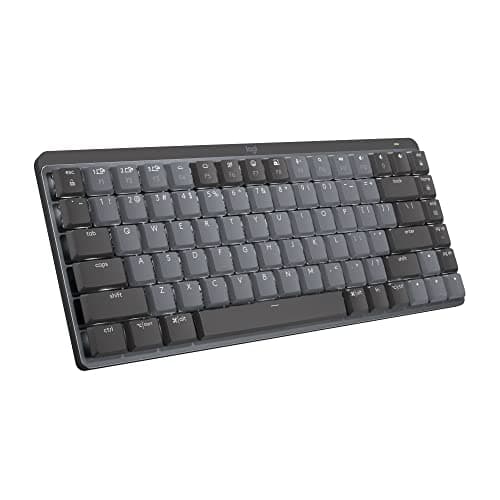
PCWorld and a wide reviewer field keep the Logitech MX Mechanical Mini on their Mac-keyboard shortlists, and it is the input a Thunderbolt stack this considered deserves. The MultiDevice feature fits a two-machine desk: one board pairs to three systems over Logi Bolt or Bluetooth and switches without re-pairing, so it serves the Mac and whatever sits beside it. Options+ handles per-app remapping on macOS without touching firmware, and the low-profile switches carry the stable, rattle-free feel Logitech's MX line is known for. As the most affordable piece here, it runs a fraction of the rest — the value dock alone lists about 2.6x its price and the display more than 10x — a modest outlay compared to the stack it completes. The trade is customization depth: there is no QMK or VIA and no hot-swap, so power users who tune every key will feel the ceiling. For the Mac owner who just wants a reliable board that follows them across machines, that ceiling never comes up — it is the finishing piece that makes the desk feel whole.
What We Love
- MultiDevice pairing across three machines via Logi Bolt and Bluetooth — the best multi-workstation wireless here
- Low-profile tactile or linear switches give a genuinely different, stable feel with no rattle
- 15-day battery life without backlight holds up under heavy daily use, over USB-C charging
- Logitech Options+ handles per-app Mac remapping without any firmware knowledge
What Could Be Better
- No QMK or VIA — Options+ remaps but cannot match open-source firmware depth
- No hot-swap, so the switch feel is locked in at purchase
The Verdict
If you type all day across a Mac and a second machine, the Logitech MX Mechanical Mini is a sensible pick for that setup. A Mac layout, Options+ remapping, and MultiDevice pairing across three machines make it the low-friction board for this desk, and you'll be well-served here. You trade deep firmware customization for that polish — a fair call for most Mac users.
How We Score: DeskGear MacBook Setup Score
DeskGear MacBook Setup Score
Score Formula
(Mac Integration x 0.30) + (Performance Headroom x 0.25) + (Value per Dollar x 0.25) + (Expandability x 0.20)Score Factors
- Mac IntegrationHow natively the piece plugs into an Apple-Silicon Mac and macOS — single-cable charge-and-drive, native display streams, no DisplayLink layer
- Performance HeadroomCharging watts, display resolution and refresh, and bandwidth versus what a MacBook actually draws under load
- Value per DollarDelivered capability against list price, rewarding right-sized picks over premium spend a desk won't use
- ExpandabilityPorts, protocol tier, and room to grow into a bigger Mac or a second machine later
DeskGear MacBook Setup Score — Ranked
CalDigit Thunderbolt Station 4 (TS4)
9.4/10Best value dock — 18 ports, 98W, native dual 6K over TB4; category consensus score, the practical Mac spine.
CalDigit TS5 Plus Thunderbolt 5 Dock
9.0/10Best overall dock — TB5 host, 140W, DisplayPort 2.1, dual 8K; category consensus score, the widest ceiling.
Apple Studio Display (Standard Glass, Tilt-Adjustable Stand)
9.0/105K retina display — native 218 ppi, single-cable charge-and-drive; scored on this metric, value dinged by price.
Sabrent Thunderbolt 4 KVM Switch (SB-TB4K)
9.0/10Mac + PC KVM — TB4-native 40Gbps switching with dual 60W PD and EDID stability; category consensus score.
Calibrite Photo Kit with Display Pro HL Colorimeter
8.9/10Color calibration — 3,000-nit sensor plus ColorChecker for external Mac panels; category consensus score.
Logitech MX Mechanical Mini
8.5/10Mac keyboard — MultiDevice across three machines, Options+ remapping; category consensus score.
Which MacBook drives what
The single fact that reshapes a Mac stack is the chip, not the dock: a base M-series chip in a MacBook Air or entry MacBook Pro supports a limited number of external displays over native Thunderbolt, while a Pro or Max chip drives more. That ceiling is set in silicon, so no dock in this roundup lifts it, and Macworld's multi-monitor guidance and Apple's own spec sheets both confirm the split. The practical read: on a base MacBook Air, the Studio Display may use up the machine's native external-display budget, and an added monitor can force a DisplayLink workaround that trades native output for a software layer — a compromise a Pro-chip owner rarely has to make. Pro and Max MacBooks, by contrast, use the full dual-display output the CalDigit docks advertise, headroom a base chip cannot match. Every piece here expects a Thunderbolt 4 or Thunderbolt 5 host to hit native video and full bandwidth, and the docks stay backward-compatible with the Thunderbolt 3 Macs still on desks. Check your chip tier before you buy the second monitor, because that is the line the whole plan pivots on.
Where the money should and shouldn't go
The fastest way to overspend a Mac desk is to buy the trophy piece before the connection that feeds it, and the traps are predictable. The display is the obvious one: the Studio Display lists around $1,599 — about 4x the value dock, roughly 3x a sharp 4K USB-C panel, and more than 5x the colorimeter — and while its native density is real, that panel does the same single-cable job when scaling perfection is not the priority. The dock is the opposite mistake — underspend there and a display or KVM bought first can be stranded, which is exactly why the weighted DeskGear MacBook Setup Score rewards the Mac-integration factor over raw port count. Most MacBooks are covered by the Thunderbolt 4 dock rather than the pricier Thunderbolt 5 flagship, which lists about 1.3x higher, and that saving comfortably funds the colorimeter or the keyboard. The colorimeter earns its place only once an external panel is on the desk, since it cannot profile the MacBook's own screen, and the KVM, at roughly 2x the keyboard, is a spend only a genuine two-machine desk recovers. Relative to buying the whole stack at once, letting the dock decision drive the order keeps the outlay proportional to what the Mac can actually use.
When NOT to Buy
This is a Thunderbolt-native plan, so the exclusions follow one rule: native output, no DisplayLink. DisplayLink docks — the ones that push a base MacBook Air past its native display ceiling through a compression-and-software layer — are deliberately left out, because they trade the clean native experience this stack is built on for a driver you babysit; they are the right call only when a base chip genuinely needs a second screen. We also skipped bare USB-C hubs that advertise "Thunderbolt speeds" without certification, since the logo is the difference between a guaranteed spec floor and a marketing claim a vendor can undershoot. And we left the second monitor off the core list on purpose: on a Pro or Max Mac it is a fine addition, but on a base chip it forces the DisplayLink compromise, so it belongs to a later decision once the chip tier is known. The durable rule is the one the whole guide turns on — settle the cable first, and let every other buy answer to it.
Who Should Buy What
Who Should Buy What
| If you are… | Recommended pick |
|---|---|
Widest-ceiling Mac desk Wants the most display and charging headroom a Mac can use: TB5 host, 140W, DisplayPort 2.1, dual 8K output. | CalDigit TS5 Plus Thunderbolt 5 Dock |
Most MacBook owners Runs a base or 14-inch MacBook and wants native dual 6K and 98W on one cable without the TB5 premium. | CalDigit Thunderbolt Station 4 (TS4) |
Native-density display buyer Works in macOS and wants 5K that never looks soft, over a single charge-and-drive Thunderbolt cable. | Apple Studio Display (Standard Glass, Tilt-Adjustable Stand) |
Photo / video color pro Edits on an external Mac panel and needs a camera-to-screen calibration workflow that has to be true. | Calibrite Photo Kit with Display Pro HL Colorimeter |
Mac-and-PC dual desk Splits the day between a Mac and a work PC on one display and wants native TB4 switching, not DisplayLink. | Sabrent Thunderbolt 4 KVM Switch (SB-TB4K) |
Multi-machine typist Types across two or three machines and wants a Mac-layout board that pairs instantly and remaps per app. | Logitech MX Mechanical Mini |
Frequently Asked Questions
What do I actually need to turn a MacBook into a desktop setup?
The core is a Thunderbolt dock, one good external display, and a keyboard and mouse; the colorimeter and KVM are role-specific extras. Buy the dock first, because it fixes how many displays and how much charging the Mac gets. A single-cable dock plus one monitor already replaces the laptop-lid setup for most people — everything past that is refinement, not a requirement.
Do I need Thunderbolt 5, or is Thunderbolt 4 enough for a MacBook?
For a base or 14-inch MacBook, Thunderbolt 4 is enough: it carries native dual 6K and 98W on one cable. Thunderbolt 5 earns its premium only if you drive an 8K display, need a 10-gig network, or run a 16-inch Pro Max whose charging pushes past what a TB4 dock supplies. Buy the ceiling you'll reach, not the one on the box.
Can a MacBook Air drive a 5K display and a second monitor?
A base M-series MacBook Air (and entry MacBook Pro) supports a limited number of external displays over native Thunderbolt — the 5K panel runs fine, but stacking additional native monitors can hit the chip's ceiling depending on the generation. That limit is set in silicon, and no dock changes it. A Pro or Max chip supports more external displays; the base-chip workaround is a DisplayLink dock, which adds a software layer at lower quality. Check Apple's spec page for your exact chip before buying a second screen.
Is the Apple Studio Display worth it over a 4K USB-C monitor?
It's worth it when native scaling is the point: 5K lands exactly on the density macOS renders to, so text looks crisp where a 4K panel goes slightly soft on a Mac. It's not worth it if you want HDR, a high refresh rate, or a height-adjustable stand — a 4K USB-C monitor does the same single-cable job for about a third of the list price and adds features the Studio Display skips.
Do I need a colorimeter if the display is already color-accurate?
For office work, no — a factory-calibrated panel like the Studio Display is fine out of the box. A colorimeter matters when output has to match across devices or over time: prints, client delivery, or a display that drifts with age. It also profiles a camera against the screen, which a factory calibration can't do, so it's a print-and-publish tool, not a general upgrade.
How do I run both a Mac and a work PC on one keyboard and monitor?
A Thunderbolt KVM like the Sabrent SB-TB4K connects both computers and hands the same display, keyboard, and mouse between them with a button press. TB4-native switching keeps each machine on a full 40Gbps path instead of a compressed one, and EDID emulation stops the monitor from flickering to black on every switch. A multi-device keyboard can also pair to both as a lighter-weight alternative.
Bottom Line
Get the CalDigit TS5 Plus Thunderbolt 5 Dock if You want the widest display and charging ceiling a Mac can use and will plug in the TB5 and 10-gig ports that justify it..
Get the CalDigit Thunderbolt Station 4 (TS4) if You run a base or 14-inch MacBook and want native dual 6K and 98W on one cable — the value spine for most Macs..
Get the Apple Studio Display (Standard Glass, Tilt-Adjustable Stand) if You work in macOS and want native 5K that never looks soft, with a camera, speakers, and mics built into the panel..
Get the Calibrite Photo Kit with Display Pro HL Colorimeter if You edit photo or video on an external Mac display and need color that matches from camera to screen to print..
Get the Sabrent Thunderbolt 4 KVM Switch (SB-TB4K) if You split the desk between a Mac and a work PC and want native Thunderbolt switching, not a DisplayLink layer..
Get the Logitech MX Mechanical Mini if You type across two or three machines and want a Mac-layout board that pairs instantly and remaps per app..
You already dock a MacBook to a monitor you're happy with and only work on one machine — buy the gaps in the stack, starting with the dock.
Sources & Methodology
Methodology: DeskGear MacBook Setup Score — Formula: (Mac Integration x 0.30) + (Performance Headroom x 0.25) + (Value per Dollar x 0.25) + (Expandability x 0.20). Factors: Mac Integration: How natively the piece plugs into an Apple-Silicon Mac and macOS — single-cable charge-and-drive, native display streams, no DisplayLink layer | Performance Headroom: Charging watts, display resolution and refresh, and bandwidth versus what a MacBook actually draws under load | Value per Dollar: Delivered capability against list price, rewarding right-sized picks over premium spend a desk won't use | Expandability: Ports, protocol tier, and room to grow into a bigger Mac or a second machine later
Expert review sources used in this analysis:
- Picks reflect aggregated editorial consensus and owner feedback across the dock, display, calibration, KVM, and keyboard categories: AppleInsider and Macworld on the CalDigit TS5 Plus and TS4 and on Apple-Silicon multi-monitor limits; The Verge and Macworld on the Apple Studio Display; PCWorld and TechRadar on the Calibrite Display Pro HL; TechRadar and The Verge on the Sabrent Thunderbolt 4 KVM; and PCWorld on the Logitech MX Mechanical Mini
- Apple hardware specifications are cited as manufacturer facts
- No individual outlet ratings are attributed
- Prices verified via the Amazon Creators API on 2026-07-09.
Nicholas Miles is the founder of DeskGearHQ and a longtime smart home enthusiast focused on helping everyday homeowners make better technology decisions. He researches, compares, and writes about products across security, climate, lighting, leak prevention, sensors, home energy, and automation, with an emphasis on real-world usefulness, ecosystem compatibility, reliability, privacy, and long-term value.
Affiliate disclosure: DeskGearHQ earns affiliate commissions on qualifying Amazon purchases. Our scoring methodology is independent of affiliate relationships.