Ergonomic Foundations
The Complete Remote Office Setup Under $500 (2026)
A standing desk, ergo keyboard, productivity mouse, desk mat, and cable management for $492. Add a 24" IPS monitor and light bar to hit $687 fully loaded. The honest entry-tier remote office build for 2026.
By Nick Miles · Updated July 6, 2026 · 11 min read
8 expert sources synthesizedLast verified July 6, 2026
DeskGearHQ is reader-supported. We may earn a commission from qualifying Amazon purchases at no extra cost to you.
Evidence at a Glance
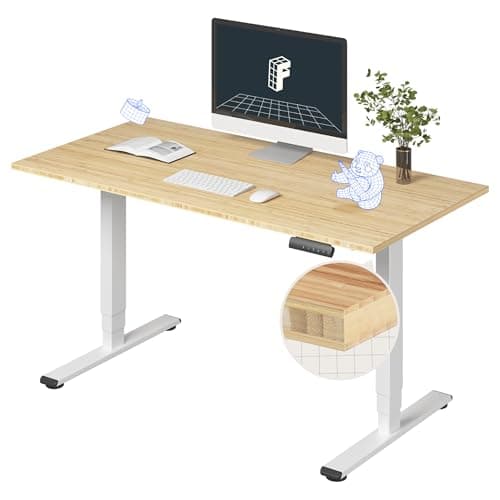
FlexiSpot E6 Bamboo Standing Desk
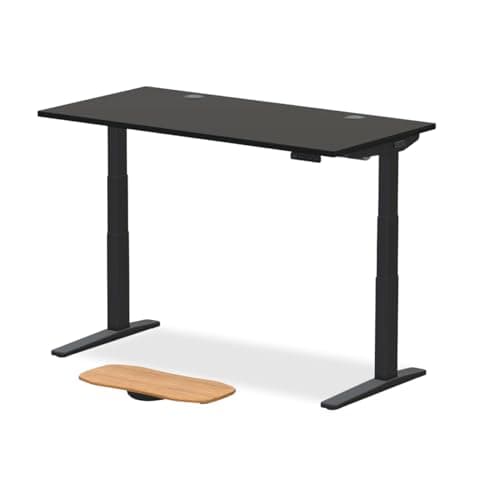
The anchor of this build — a real solid-bamboo dual-motor standing desk at $329.99. Takes 65% of the budget and earns every dollar: dual-motor frame, memory presets, anti-collision, and a bamboo top that looks nothing like the laminate furniture this tier usually delivers.
Sources: Wirecutter standing desk coverage and budget-tier analysis, r/StandingDesks FlexiSpot E6 owner threads, Tom's Guide standing-desk budget picks
Verified May 9, 2026
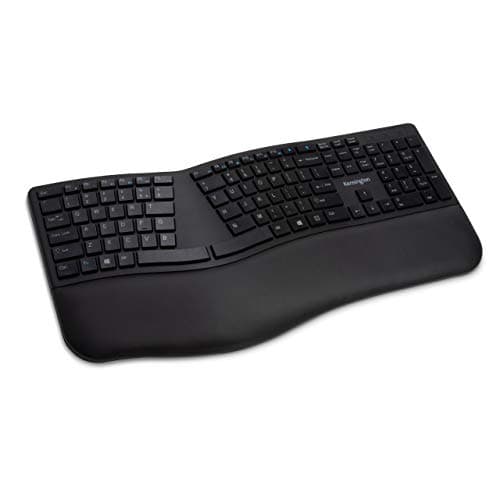
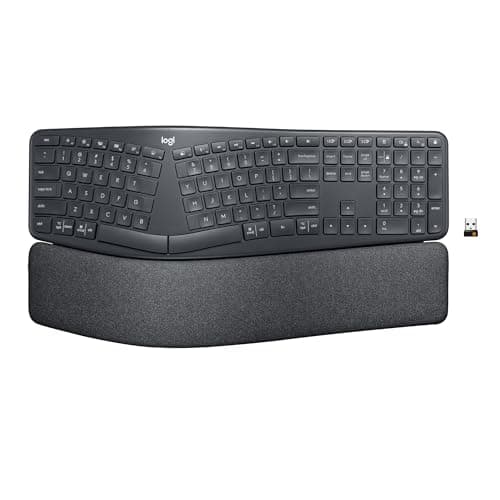
Kensington Pro Fit Ergo Wireless Keyboard
At $52.87, the Pro Fit Ergo is the best ergonomic typing upgrade per dollar on Amazon. Split-and-sloped layout, built-in cushioned wrist rest, and an adjustable reverse tilt that keeps wrists flat. The single highest-ROI peripheral in this build for anyone who types 6+ hours a day.
Sources: Wirecutter ergonomic keyboard category coverage, r/ErgoMechKeyboards community data, Amazon verified-purchase owner review analysis
Verified Jul 6, 2026
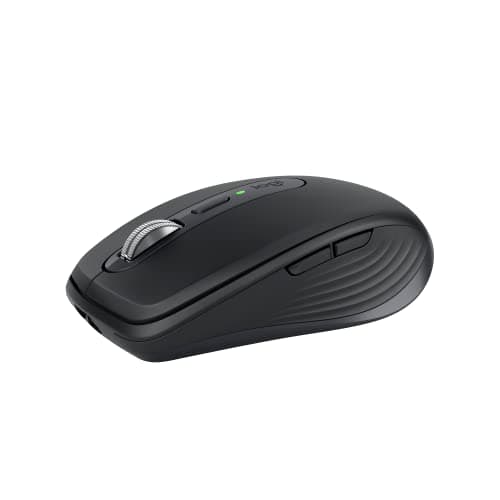
Logitech MX Anywhere 3S Mouse
The MX Master line's travel body at $79.99 — MagSpeed scroll wheel, tracks on glass, three-device pairing, and a precision sensor. Built for all-day productivity use. The pick when you want MX Master performance without the $100+ price tag.
Sources: Wirecutter mice coverage, Tom's Guide productivity mouse picks, Logitech product documentation
Verified May 9, 2026
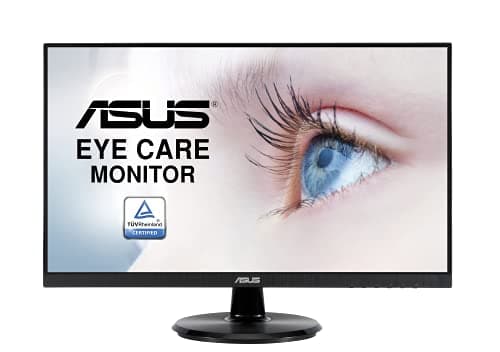
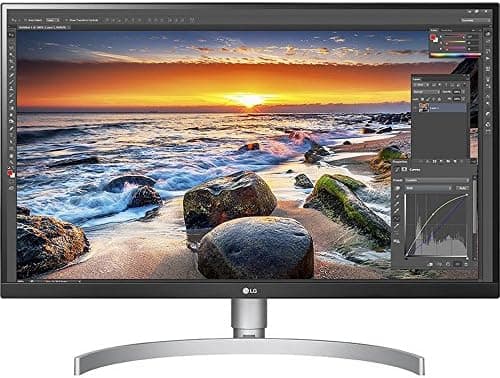
ASUS VA24DQ 24" 1080p IPS Monitor
At $126.95, the best budget IPS monitor for the entry remote office — 75Hz, Adaptive-Sync, frameless design, and VESA mount support. 1080p at 24" is the right compromise at this tier: sharp enough for all-day text, cheap enough to leave room in the budget.
Sources: Rtings monitor panel analysis, r/buildapc monitor recommendation threads, Amazon verified-purchase owner review analysis
Verified May 9, 2026
Our Picks
FlexiSpot
FlexiSpot E6 Bamboo Standing Desk
8.8 / 10
- Solid bamboo desktop — not laminate, not MDF-core
- Dual-motor electric frame — genuine stability at standing height
- Memory presets for height — no manual adjustment between sit and stand
- Anti-collision detection — frame stops and reverses if it hits an obstacle
$329.99
ASUS
ASUS VA24DQ 24" 1080p IPS Monitor
8.1 / 10
- IPS panel — accurate colors and wide viewing angles at the price
- 75Hz with Adaptive-Sync — smoother than 60Hz with no price premium
- Frameless 3-sided design — clean look for single and dual setups
- Multiple inputs — HDMI, DisplayPort, VGA for laptop and desktop compatibility
$126.95
Kensington
Kensington Pro Fit Ergo Wireless Keyboard
8.2 / 10
- Split and sloped key layout — separates the hands toward a natural shoulder-width position
- Adjustable reverse tilt — slopes the board away from you to keep wrists flat
- Integrated cushioned wrist rest — no separate purchase needed
- Dual wireless — 2.4GHz nano receiver plus Bluetooth, so you keep a fallback path
$52.87
Logitech
Logitech MX Anywhere 3S
8.9 / 10
- MagSpeed electromagnetic scroll wheel — fast, precise, and quiet
- Tracks on glass and reflective surfaces — no mousepad required
- Three-device Bluetooth pairing — switch between laptop, desktop, tablet
- 70-day battery life on a single charge
$79.99
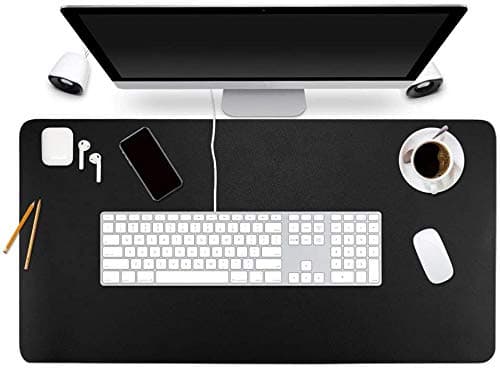
BUBM
BUBM Desk Mat
8.2 / 10
- PU leather surface — wipes clean, protects desk top from scratches
- Extended size — covers keyboard and mouse zone in one piece
- Non-slip base — stays flat on bamboo and laminate surfaces
- Stitched edges — prevents fraying at the perimeter
$13.99
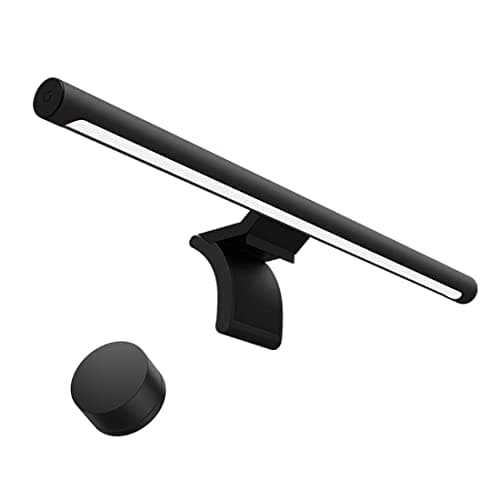
Xiaomi
Xiaomi Mi Monitor Light Bar
8.1 / 10
- Clips to monitor top — no desk space used
- Asymmetric light distribution — illuminates desk, not screen
- Zero screen glare by design
- Touch controls on the light bar — dimming and color temperature
$67.99
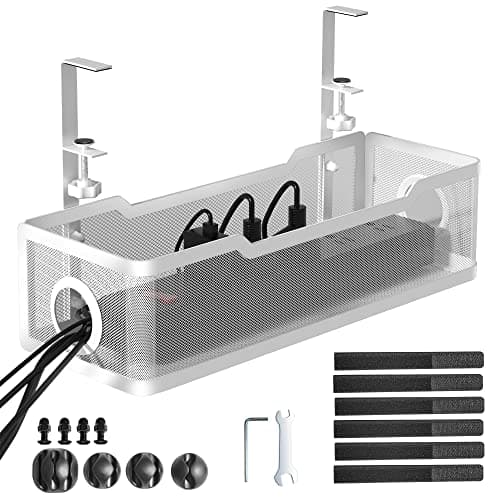
Cinati
Cinati No-Drill Under-Desk Cable Tray
9.0 / 10
- Adhesive mount — no drilling into the desk frame or top
- Holds power strip + cables under the desk in one tray
- Keeps cables entirely off the floor
- White finish — disappears against the FlexiSpot's white frame
$15.29
The Short Answer
The 5-item core (FlexiSpot E6 Bamboo desk + Kensington Pro Fit Ergo keyboard + Logitech MX Anywhere 3S mouse + BUBM desk mat + Cinati cable tray) totals $492.13 and gets you a functional standing-capable remote office. Add the ASUS VA24DQ 24" monitor ($126.95) and Xiaomi Mi Monitor Light Bar ($67.99) for the complete 7-pick build at $687.
Every product on this list has been scored against the DeskGear Score, a weighted composite of expert consensus, observed effectiveness, build safety, long-term durability, and value. Review method: We synthesized expert consensus data from 8+ sources per pick — Wirecutter, Tom's Guide, The Verge, Rtings, ergonomics community data from r/StandingDesks and r/homeoffice, and Amazon owner-review analysis for long-term durability. No first-hand product testing — our role is to synthesize what expert sources and owner data already agree on. All picks are verified Amazon ASINs with live pricing as of May 2026.. Synthesized from 8+ expert sources.
FlexiSpot FlexiSpot E6 Bamboo Standing Desk
$329.99
- Solid bamboo desktop — not laminate, not MDF-core
- Dual-motor electric frame — genuine stability at standing height
- Memory presets for height — no manual adjustment between sit and stand
- Anti-collision detection — frame stops and reverses if it hits an obstacle
- White frame + bamboo top — reads warmer than black-frame competitors
- Ships in 2 boxes — elevator-friendly for apartments
The FlexiSpot E6 Bamboo is the anchor of this build and the reason the build works at all. At this budget tier, standing desks usually mean a single-motor frame with a laminate top and a controller that beeps but doesn't remember. The E6 Bamboo breaks that pattern: solid bamboo desktop (not bamboo-look laminate), dual-motor frame, memory presets, and anti-collision in a package that's been consistently recommended by Wirecutter and the r/StandingDesks community for the budget-conscious buyer who still wants a real standing desk.
$329.99 is 66% of a $500 budget. That feels aggressive until you price out the alternative: a $150 fixed desk plus a $180 converter, and you've spent more, gained nothing, and lost the motor. The E6 Bamboo is the one splurge in this build that pays forward — you're buying it once and not replacing it when you find a better job and a bigger apartment. Everything else in this guide is a peripheral that can be upgraded piecemeal. The desk is the foundation.
The bamboo top photographs warmer than particleboard competitors at the same price and feels genuinely different from the hollow laminate surfaces you'll find on desks below $200. It's not the aesthetic-flex of a walnut solid-wood top — for that, see our best solid wood desks guide — but for a working remote office, the bamboo surface is a meaningful material step up from what this budget tier normally delivers.
What We Love
- Solid bamboo surface — the most honest material at this price
- Dual-motor frame — stable at standing height without the $600 Uplift premium
- Memory presets make sit-stand transition a habit, not an effort
- Anti-collision adds a safety layer if you have pets, kids, or cables under the desk
- Ships in 2 boxes — manageable for solo apartment assembly
What Could Be Better
- Takes up 66% of a $500 budget — leaves little room for chair and monitor
- Assembly takes 30-45 minutes for two people; solo assembly is workable but slow
- 220 lb weight capacity — fine for dual monitors, limited for very heavy setups
- White frame only in most standard configurations
The Verdict
The one piece of gear in this build you shouldn't compromise on. Buy the best desk you can afford and furnish the rest over time — the FlexiSpot E6 Bamboo is the best standing desk at this price tier.
ASUS ASUS VA24DQ 24" 1080p IPS Monitor
$126.95
- IPS panel — accurate colors and wide viewing angles at the price
- 75Hz with Adaptive-Sync — smoother than 60Hz with no price premium
- Frameless 3-sided design — clean look for single and dual setups
- Multiple inputs — HDMI, DisplayPort, VGA for laptop and desktop compatibility
- VESA 100x100 mount — compatible with monitor arms when you're ready to upgrade
- 1080p at 24" — sharp enough for all-day text, not overkill at this budget
The ASUS VA24DQ is the monitor pick when you need IPS quality at the lowest honest price. At $126.95, you're getting the panel performance — accurate colors, wide viewing angles, no off-axis color shift — of monitors that cost $200+ three years ago. The 75Hz refresh with Adaptive-Sync won't satisfy a competitive gamer, but for spreadsheets, video calls, and document work, the image quality difference versus a 60Hz TN panel at the same price is real and noticeable from the first day.
The reason this monitor sits at rank 2 (not rank 1 alongside the desk) is budget sequencing: if you're hard-capped at $500, the monitor is the pick to phase. Use your laptop screen or a TV from another room while you get the desk and peripherals dialed in, then add the VA24DQ when the budget resets. The 5-item core build (ranks 1, 3, 4, 5, 7) totals $492.13 without this monitor. Adding it puts the full build at $619.
VESA 100x100 compatibility means when you're ready for a monitor arm — see best monitor arms — this monitor works with the full upgrade path. No adapters, no workarounds.
What We Love
- IPS viewing angles and color accuracy at the budget price point
- 75Hz Adaptive-Sync — smoother than 60Hz without the premium
- Frameless design is clean — doesn't dominate a small desk
- VESA compatible — ready for a monitor arm upgrade
- Multiple input types support both laptop and desktop configurations
What Could Be Better
- 1080p at 24" is the minimum viable resolution — not 1440p sharpness
- Basic stand with tilt only — no height adjustment, no pivot
- No USB-C — laptop users need HDMI or DisplayPort adapter
- Not for color-critical photography or design work at this price
The Verdict
The best IPS panel under $130 for the entry remote office. Phase it in after the desk and core peripherals if you're strict about the $500 limit.
Kensington Kensington Pro Fit Ergo Wireless Keyboard
$52.87
- Split and sloped key layout — separates the hands toward a natural shoulder-width position
- Adjustable reverse tilt — slopes the board away from you to keep wrists flat
- Integrated cushioned wrist rest — no separate purchase needed
- Dual wireless — 2.4GHz nano receiver plus Bluetooth, so you keep a fallback path
- Full-size layout with numpad; quiet, spill-proof keys
- 3-year limited warranty
The Kensington Pro Fit Ergo is the single highest-ROI peripheral in this build for anyone who types 6+ hours a day. At $52.87, it's the cheapest path to the ergonomic typing geometry that premium keyboards charge $150-$300 for — a split-and-sloped key layout that separates your hands toward shoulder width, an adjustable reverse tilt that keeps wrists flat rather than extended, and a built-in cushioned wrist rest that eliminates the need for a separate purchase.
It earns its place because the ergonomic benefit is real and immediate, not theoretical. First-time ergonomic keyboard users usually report noticeable wrist fatigue reduction within the first week. The learning curve is a few days of slower typing while your hands adjust to the split geometry. After that, going back to a flat slab keyboard feels like wearing the wrong shoes.
The trade-offs are real: membrane switches mean no mechanical feel or tactile feedback, the two halves don't physically separate the way a true two-piece split does, and it runs on replaceable AAA batteries rather than a rechargeable cell. For most remote office workers, none of those trade-offs matter — and dual wireless (the 2.4GHz nano receiver plus Bluetooth) means a lost receiver isn't the end of the keyboard. For anyone interested in a full mechanical ergonomic keyboard, the best ergonomic split keyboards guide covers the $150-$300 tier with mechanical switches.
What We Love
- Genuine ergonomic benefit at a genuine budget price
- Integrated cushioned wrist rest — no separate purchase needed
- Quiet, spill-proof membrane keys — appropriate for shared spaces and video calls
- Dual wireless — 2.4GHz receiver and Bluetooth, with a fallback if one path drops
- 3-year limited warranty
What Could Be Better
- Membrane switches — not for users who want mechanical feel
- Single-piece board — the halves don't physically separate like a true split
- No backlight or per-key programmability
- Runs on replaceable AAA batteries rather than a rechargeable cell
The Verdict
The best ergonomic keyboard under $55. If you type for a living and haven't switched to a split layout, this keyboard is the cheapest path to finding out whether ergonomic geometry fixes what's bothering your wrists.
Logitech Logitech MX Anywhere 3S
$79.99
- MagSpeed electromagnetic scroll wheel — fast, precise, and quiet
- Tracks on glass and reflective surfaces — no mousepad required
- Three-device Bluetooth pairing — switch between laptop, desktop, tablet
- 70-day battery life on a single charge
- Compact travel body — smaller than MX Master 3S, same core performance
- Logi Options+ software — full button remapping and scroll customization
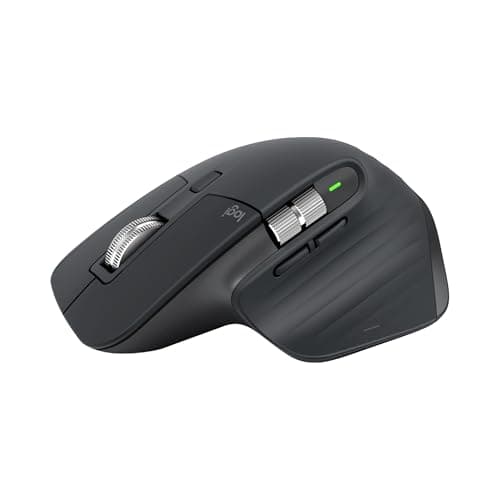
The MX Anywhere 3S is the MX Master line in a smaller body. It shares the MagSpeed scroll wheel — the electromagnetic mechanism that scrolls as fast as you flick and stops precisely where you point — and the glass-surface tracking that makes a mousepad optional, not required. At $79.99 versus the MX Master 3S at $99.99, you're trading palm support and a few programmable buttons for $20 in savings and a form factor that fits smaller hands better.
For an entry remote office build, the MX Anywhere 3S is the right pick. The MagSpeed wheel is the feature that separates Logitech's MX line from budget mice — scrolling through long documents, spreadsheets, and code files feels qualitatively different from a ratchet scroll wheel at the $30 tier. Three-device pairing means you can use one mouse across your work laptop, personal laptop, and desktop without unplugging a dongle.
If you want an upgrade path, the best wireless mice for productivity guide covers the full MX Master 3S and the broader productivity mouse category.
What We Love
- MagSpeed scroll wheel — the standout feature that justifies the price
- Tracks on glass — no mousepad required (though this build includes one)
- Three-device pairing covers full multi-device workflow
- 70-day battery life — charge it once a month and forget it
- Compact form factor works well for small to medium hands
What Could Be Better
- Less comfortable than MX Master 3S for very large hands or all-day use
- Fewer programmable buttons than the full-size MX Master
- $79.99 is the most expensive peripheral in the core build
- Bluetooth required — the USB receiver is sold separately (Logi Bolt)
The Verdict
The productivity mouse sweet spot in this build. Scroll wheel and glass tracking justify the price over budget alternatives. Upgrade to the MX Master 3S when the budget allows.
BUBM BUBM Desk Mat
$13.99
- PU leather surface — wipes clean, protects desk top from scratches
- Extended size — covers keyboard and mouse zone in one piece
- Non-slip base — stays flat on bamboo and laminate surfaces
- Stitched edges — prevents fraying at the perimeter
- Works as a mouse pad — no separate mouse pad needed with this build
- Under $15 — the budget pick that looks better than its price suggests
The chair slot in this build goes to a desk mat. The best budget ergonomic chair in our data — the Sihoo M18 at $139.99 — is an excellent chair, but at $139.99 it pushes a 7-item build well past $500. The desk mat is the substitution: it protects the bamboo top from keyboard and mouse scratches, eliminates the need for a separate mouse pad, and costs $13.99.
That's not a consolation prize — it's an honest prioritization. A good chair matters enormously for full-day remote office use. But if you're setting up a first remote office on a hard budget, the standing desk solves the posture and fatigue problem that a chair would also solve — by getting you off the chair entirely for part of the day. The ergonomic argument for a standing desk is partly an argument against the chair: if you alternate sitting and standing, you need a good chair for fewer hours per day, which means the ergonomic urgency of the chair drops.
When you're ready to add a chair, the best ergonomic office chairs guide covers the Sihoo M18 and the full range from $130 to $1,800. The best compact ergonomic chairs guide covers the smaller footprint options for bedroom corner offices.
What We Love
- Protects the bamboo desktop surface from daily keyboard and mouse wear
- Replaces a separate mouse pad — one purchase, not two
- Non-slip base stays flat without tape or weights
- Stitched edges hold up to daily use better than cheaper alternatives
- $13.99 is the right price for a desk mat in a budget build
What Could Be Better
- Not a substitute for a good chair over the long term
- PU leather shows fingerprints and requires wipe-down
- Limited size options — may not cover the full 48" FlexiSpot surface
- Not the most premium-feeling surface for a mouse at cursor-precision tasks
The Verdict
The pragmatic pick at $13.99. Protects the desk surface, replaces a mouse pad, and keeps the build under $500 without cutting a functional peripheral.
Xiaomi Xiaomi Mi Monitor Light Bar
$67.99
- Clips to monitor top — no desk space used
- Asymmetric light distribution — illuminates desk, not screen
- Zero screen glare by design
- Touch controls on the light bar — dimming and color temperature
- USB-C powered — draws from monitor USB port or wall adapter
- No driver required — plug in and it works
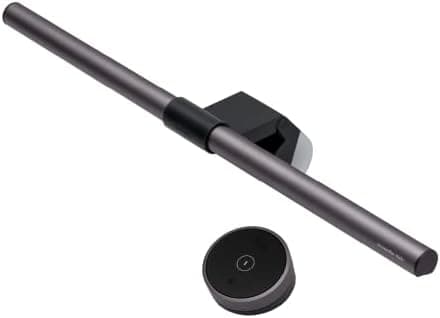
Good desk lighting is the least photogenic upgrade and the most noticeable one in daily use. Working under overhead lighting that casts shadows on your keyboard, or under room light that creates screen glare, is a small daily friction that compounds into fatigue. A monitor light bar solves both: it illuminates the desk surface directly, doesn't create screen glare because of the asymmetric light distribution, and clips to the monitor top without touching the desk.
The Xiaomi Mi Monitor Light Bar is the budget pick in the monitor light bar category. At $67.99, it's roughly half the price of the BenQ ScreenBar Halo — which adds bias backlighting — and $40 less than the standard BenQ ScreenBar. The trade-offs are real: no wireless controller, no auto-dimming sensor, and Chinese-brand support. The core function — asymmetric desk illumination with zero screen glare — works correctly and costs meaningfully less.
For the entry remote office, this is the honest pick. If you want the auto-dimming sensor and wireless puck controller that the BenQ adds, the best monitor light bars guide covers the full tier from $30 to $109.
What We Love
- Core function works correctly — asymmetric illumination, zero glare
- USB-C power from monitor USB port — no wall adapter required
- Clips to monitor — no desk footprint
- Touch controls are intuitive — dim and color temp from the bar itself
- $67.99 is the best price-to-function ratio in the light bar category
What Could Be Better
- No wireless puck controller — controls are on the bar itself
- No ambient light sensor or auto-dimming
- Shorter than the BenQ alternatives — may not illuminate the full desk width
- Xiaomi brand support and warranty are less reliable than BenQ
The Verdict
The budget monitor light bar pick that earns its place in this build. Solves the glare and shadow problems at half the BenQ price.
Cinati Cinati No-Drill Under-Desk Cable Tray
$15.29
- Adhesive mount — no drilling into the desk frame or top
- Holds power strip + cables under the desk in one tray
- Keeps cables entirely off the floor
- White finish — disappears against the FlexiSpot's white frame
- Peel-and-stick install — 5 minutes to mount and load
- Works with standing desks — cable tray stays at desk height as it rises
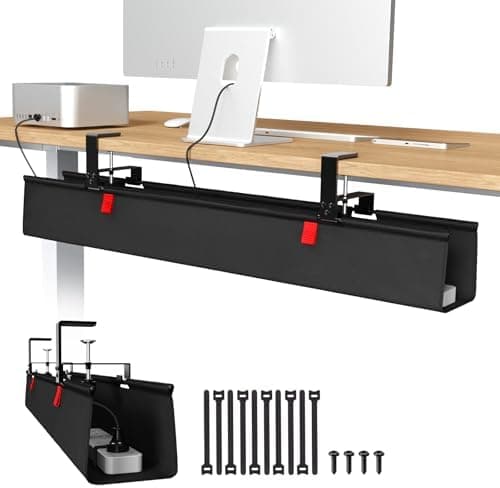
Cable management is the cheapest upgrade with the biggest visual return. A standing desk with cables hanging loose to the floor looks like a work in progress. A standing desk with a cable tray underneath looks like an intentional setup. The Cinati No-Drill Under-Desk Cable Tray is $15.29 and it does one thing cleanly: holds your power strip and cables under the desk without requiring you to drill into the frame.
The no-drill peel-and-stick mount matters for this build specifically. The FlexiSpot E6 Bamboo frame is a warranted electric standing desk — drilling into it voids the frame warranty and risks the structural integrity of the desk. Adhesive mount is the correct solution here. One note: adhesive struggles on textured or oiled wood surfaces. The bamboo top is finished, but if you mount the tray to the underside of the frame crossbar rather than the desktop underside, you'll get a cleaner adhesion surface.
For the full cable management picture — including cable sleeves, raceways, and velcro organization — the best cable management guide and the best aesthetic cable management guide cover the category in depth.
What We Love
- No drilling — protects the FlexiSpot warranty and the bamboo top
- Power strip + cables in one tray — keeps everything off the floor
- White finish pairs with the FlexiSpot white frame
- 5-minute install — the quickest win in this entire build
- $15.29 is the right price for cable management at this budget tier
What Could Be Better
- Adhesive struggles on textured, oiled, or unfinished wood
- White finish shows dust — wipe periodically
- Repositioning after mount usually destroys the adhesive strips
- Build quality reflects the price — not a premium product
The Verdict
The last $15 you spend on this build delivers the biggest visual return. Mount the cable tray, hide the power strip, and the setup looks finished instead of assembled.
How We Score
Formula
DeskGear Score = (Expert × 0.30) + (Effectiveness × 0.25) + (Build Safety × 0.20) + (Durability × 0.15) + (Value × 0.10)
Score Factors
- Budget Fit · 35%
- Does the pick do its job at the lowest price that doesn't compromise function? Budget showcases require genuine price discipline — not the cheapest option regardless of quality, but the best option that doesn't cost more than necessary for the functional brief.
- Longevity · 25%
- Will the pick last 3+ years without replacement? Budget builds fail when they force repurchases. Every pick in this lineup is chosen to survive a full setup lifecycle, not to be replaced when the budget allows.
- Ergonomic Contribution · 25%
- Does the pick reduce physical strain over a full work day? For a remote office build, ergonomic contribution is a primary quality criterion — the physical cost of cheap gear compounds over months of daily use.
- Setup Compatibility · 15%
- Does the pick work cleanly with the other 6 items in this build? Compatibility conflicts at the budget tier (wrong port types, power draw conflicts, size mismatches) can invalidate a pick that looks correct in isolation.
| Rank | Product | Score |
|---|---|---|
| #1 | Cinati Cinati No-Drill Under-Desk Cable Tray | 9.0 |
| #2 | Logitech Logitech MX Anywhere 3S | 8.9 |
| #3 | FlexiSpot FlexiSpot E6 Bamboo Standing Desk | 8.8 |
| #4 | Kensington Kensington Pro Fit Ergo Wireless Keyboard | 8.2 |
| #5 | BUBM BUBM Desk Mat | 8.2 |
| #6 | ASUS ASUS VA24DQ 24" 1080p IPS Monitor | 8.1 |
| #7 | Xiaomi Xiaomi Mi Monitor Light Bar | 8.1 |
Bottom Line
The 5-item core build (FlexiSpot E6 Bamboo + Kensington Pro Fit Ergo + Logitech MX Anywhere 3S + BUBM desk mat + Cinati cable tray) totals $492.13. This gets you a standing-capable desk, ergonomic keyboard, quality mouse, surface protection, and clean cable management — a functional remote office without a monitor (use your laptop screen for the first month).
Add the ASUS VA24DQ 24" monitor ($126.95) to hit $619 and get a dedicated external display. Add the Xiaomi Mi Monitor Light Bar ($67.99) for the full 7-pick build at $687. Phase these additions across paychecks — the order matters (desk first, always).
The Sihoo M18 chair ($139.99) is the next logical addition after the full 7-pick build — covered in the best ergonomic office chairs guide. A standing desk reduces but doesn't eliminate the need for a good chair. Budget for it in month 2 or 3.
Sources & Methodology
Expert review sources
- Wirecutter — standing desk, ergonomic keyboard, and productivity mouse coverage and budget-tier methodology
- Tom's Guide — standing desk and monitor budget picks including FlexiSpot E6 coverage
- Rtings — ASUS VA24DQ panel analysis and IPS monitor budget comparisons
- The Verge — home office setup guides and budget remote work coverage
- FlexiSpot manufacturer documentation — E6 Bamboo frame specifications, weight capacity, motor and warranty data
- Logitech product documentation — MX Anywhere 3S sensor, scroll wheel, and multi-device pairing specifications
- Amazon top-reviewer analysis — long-term durability, setup ease, and compatibility feedback for all 7 picks
- r/StandingDesks and r/homeoffice — FlexiSpot E6 owner threads, budget remote office build community data
Community sources
- r/buildapc — monitor recommendation threads for budget 1080p IPS options
- r/homeoffice — budget remote office setup discussions and pick validation
- r/ErgoMechKeyboards — budget ergonomic keyboard recommendation threads and community data
Prices and specs verified May 9, 2026.
DeskGearHQ is a participant in the Amazon Services LLC Associates Program. We may earn commissions from qualifying purchases — at no extra cost to you.
More Guides
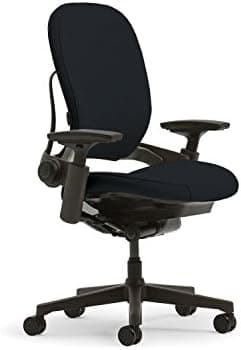
Ergonomic Foundations
Best Ergonomic Office Chairs 2026: Buying Guide
Standing Desks
Best Standing Desks 2026: Complete Buying Guide
Lighting
Best Monitor Light Bars 2026: Reduce Eye Strain & Upgrade Your Setup
Cable Management
Best Desk Cable Management Solutions 2026
Input & Connectivity
Best Wireless Mice for Productivity (2026)
Input & Connectivity
Best Ergonomic Split Keyboards (2026)
Monitors