Mac mini M6 Desk Setup 2026: Screen, Dock, Storage
Most new Mac mini buyers stall on the monitor, not the Mac. Choose the screen for macOS scaling, stay inside Apple's three-display limits, and fix the missing USB-A with a dock that matches your Thunderbolt generation.
This article contains affiliate links. We may earn a commission at no extra cost to you. Learn more
Featured in this Guide
Apple
Mac mini (M6)
- •Three external displays at the lowest current Mac mini price; the trade is Thunderbolt 4 instead of 5.
Apple
Mac mini (M5 Pro)
- •Three Thunderbolt 5 ports let a TS5 dock or an LG 6K panel run at the speed printed on the box.
Apple
Studio Display (Standard Glass, VESA Mount Adapter)
- •One Thunderbolt cable carries picture
- •camera
- •mics and speakers
BenQ
PD2730S 27" 5K
- •Retina-sharp 5K plus a built-in KVM. Want 32 inches? The ASUS ProArt PA32QCV 6K does the same job bigger.
BenQ
MA320U 32" 4K
- •TechRadar's top Mac mini monitor. It is a large 4K panel whose brightness and volume answer to the Mac keyboard.
CalDigit
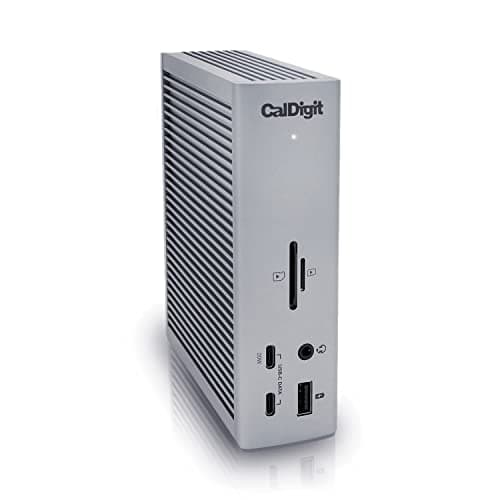
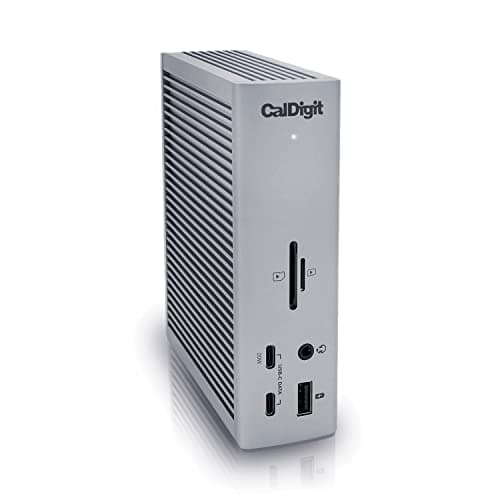
Thunderbolt Station 4 (TS4)
- •Five USB-A ports behind one cable. It runs on the same Thunderbolt 4 generation as the M6 itself.
The Short Answer
Choose the M6 Mac mini when Thunderbolt 4 covers your equipment, or the M5 Pro for full-speed Thunderbolt 5 accessories. Pair either with the BenQ PD2730S for genuine 5K and a KVM, add a CalDigit TS4 to restore USB-A, and remember Apple's three-display limit, which no docking station expands.
The Mac mini is the easy half of this purchase, and the display is where buyers hesitate. One Mac Power Users member with an M6 on order admitted "I am vacillating on the monitor." Another, considering the new mini, worried that a separate monitor "would raise the price a lot." After the monitor come the connectivity surprises: no USB-A, an unreliable third display, and external drives ejecting overnight. As of September 2026, no M6 or M5 Pro owner has reported a display or docking problem. The failure reports quoted below therefore come from M4-generation owners whose machines share the same enclosure and ports. Every product also shows its DeskGear Composite Score, the weighted catalog-wide rating explained in the methodology section.
Screens and Docks Side by Side
Input & Connectivity
Chart
 DeskGearHQ.com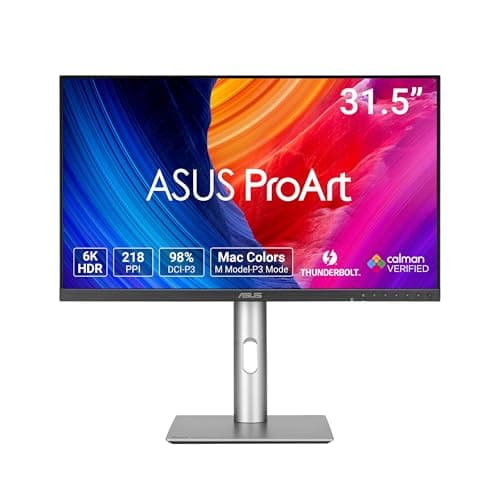
Cheapest mini that still runs three displays: Apple Mac mini (M6)
Apple Mac mini (M6)
(Current price, subject to change)
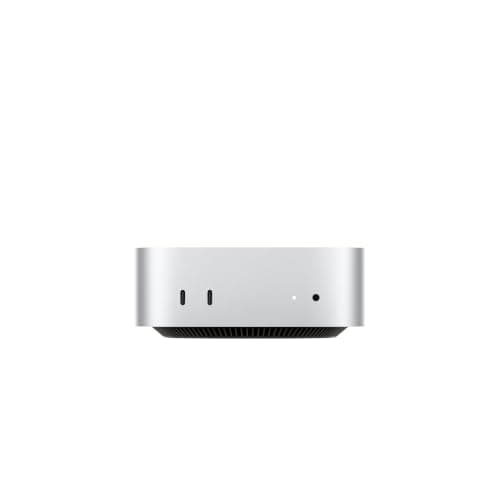
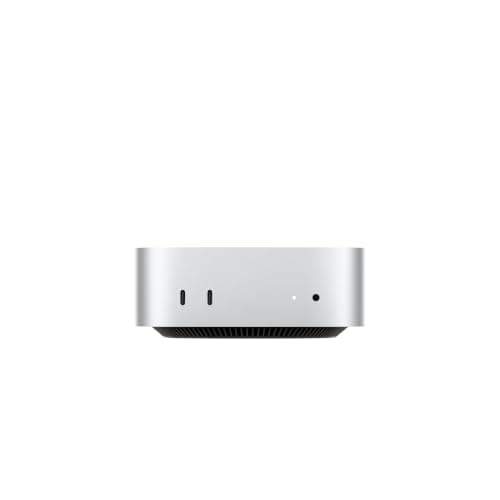
For most people assembling a first desk around a headless Mac, the M6 is the most sensible foundation available. Gizmodo's summary frames it accurately: "The M6 Mac mini also has just enough ports so long as you don't need USB-A." The rear panel offers 3x Thunderbolt 4 ports, HDMI and 2.5Gb Ethernet, while the front adds 2x USB-C data ports. That combination accommodates a monitor, a docking station and a wired network without additional adapters. Apple's specifications allow three screens, with the third capped at 5K/60Hz over Thunderbolt or 4K/60Hz over HDMI, while the M5 Pro runs all three at full spec. For most desks that cap never bites, which makes the M6 the value tier of this lineup. The compromise is bandwidth: PetaPixel called the Thunderbolt 4 ports "a little surprising," and OWC, a vendor, explains that Thunderbolt 5 accessories fall back to Thunderbolt 4 speed here. Storage deserves attention too, because PetaPixel considers Apple's base SSD limiting and the Amazon listing never states its configuration. You sacrifice peak bandwidth and internal capacity in exchange for the lowest entry price, and for most desks that exchange is worth making.
What We Love
- Runs up to three external displays, two of them at 6K/60Hz or 4K/165Hz (Apple).
- HDMI and 2.5Gb Ethernet on the back, so a wired desk needs no adapters.
- Wi-Fi 7 and Bluetooth 6 built in for wireless keyboards, mice and networking.
What Could Be Better
- Thunderbolt 4 only, so Thunderbolt 5 docks and displays run at reduced speed.
- No USB-A, and the front USB-C ports carry data only, not video (Tom's Guide).
The Verdict
If your screens connect over Thunderbolt 4, USB-C or HDMI, the Apple Mac mini (M6) fits the brief. It drives up to three displays, though its third screen is capped lower than on the M5 Pro. At Apple's $899 starting price it also leaves room in the budget for a proper monitor. You give up Thunderbolt 5 bandwidth. That only matters if Thunderbolt 5 gear is already on your list.
Thunderbolt 5 docks and monitors at full speed: Apple Mac mini (M5 Pro)
Apple Mac mini (M5 Pro)
(Current price, subject to change)
The M5 Pro earns its position in this guide for one particular reason: Thunderbolt 5 connectivity. PetaPixel wrote that the M6's Thunderbolt 4 ports alone "may make some users want to pay more for an M5 Pro Mac mini." Tom's Guide describes the identical split between the professional and standard chips. With 3x Thunderbolt 5 ports on the back, the additional bandwidth becomes meaningful once a Thunderbolt 5 dock, a 6K display and fast external storage share one desk. The enclosure, HDMI port, 2.5Gb Ethernet, 2x front USB-C data ports and the missing USB-A all carry over from the M6. Display support does not carry over. Apple rates all three of the M5 Pro's external screens at up to 6K/60Hz or 4K/165Hz, whereas the M6 caps its third screen at 5K/60Hz or 4K/60Hz. A three-monitor, high-refresh configuration therefore constitutes a second justification for stepping up. As with the M6, the Amazon listing leaves the processor, memory and storage configuration unstated, so confirm those details before checking out. Relative to the M6, this is the higher-priced tier. It is built for the video editor or developer who already owns Thunderbolt 5 equipment and expects every port to deliver its advertised speed.
What We Love
- Three Thunderbolt 5 ports run Thunderbolt 5 docks and monitors at full speed.
- Pairs with the CalDigit TS5 and LG UltraFine 6K without a speed penalty.
- All three external displays run at up to 6K/60Hz or 4K/165Hz, with no reduced-spec third screen (Apple).
What Could Be Better
- Apple lists it from $1,699, nearly double the M6's starting price.
- Still no USB-A, so a dock or adapter is on the shopping list anyway.
The Verdict
If you've already picked a Thunderbolt 5 dock or a Thunderbolt 5 panel, the Apple Mac mini (M5 Pro) lines up with what you actually need. It keeps that gear at full speed instead of stepping it down. It suits a video editor or developer who drives high-resolution screens and fast storage from one small box all day.
Cleanest one-cable desk: Apple Studio Display (Standard Glass, VESA Mount Adapter)
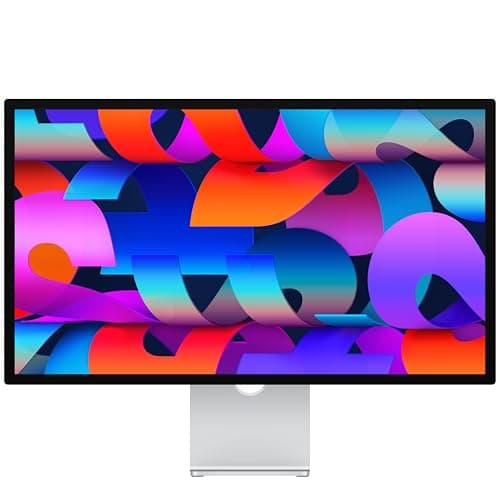
Apple Studio Display (Standard Glass, VESA Mount Adapter)
(Current price, subject to change)
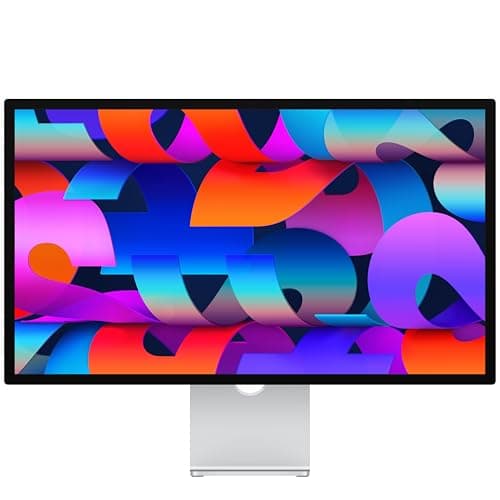
TechRadar captures both sides of this display. It calls it "an excellent all-in-one solution for the Mac mini" because the webcam, speakers and microphone are built in, and also "a pricey monitor." For a headless Mac, that all-in-one argument carries unusual weight. The Mac mini has no camera or microphone of its own, so this display replaces a separate webcam, a microphone and their cables. Apple's current specifications list two Thunderbolt 5 ports on the 2026 model, which confirms it is a current-generation product rather than inventory from an earlier cycle. The listing linked here is the VESA adapter version, which arrives without a stand and expects a monitor arm or wall mount. The Value per Dollar factor pulls its rating down relative to the BenQ alternatives, because you are paying for integration and simplicity rather than additional pixels. For a buyer who wants the simplest premium display on a Mac mini, it remains the right recommendation.
What We Love
- One Thunderbolt cable carries picture, camera, mics and speakers from the Mac mini.
- 27-inch 5K Retina panel, so macOS runs at its native sharp scaling.
- TechRadar calls it an excellent all-in-one for the Mac mini.
What Could Be Better
- TechRadar calls it pricey, and MacRumors finds the 5K BenQ PD2730S more accessibly priced.
- This VESA version ships without a stand, so budget for an arm or mount.
The Verdict
If you want the tidiest possible desk and the budget allows it, the Apple Studio Display (Standard Glass, VESA Mount Adapter) is the path of least friction. You get one cable, a built-in camera and speakers, and Apple-native 5K scaling with nothing to configure. Pick it when a clean all-Apple setup beats screen per dollar.
True 5K plus a KVM for a work laptop: BenQ PD2730S 27" 5K
BenQ PD2730S 27" 5K
(Current price, subject to change)
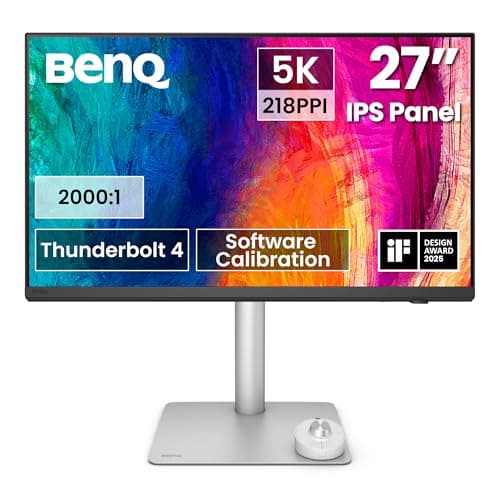
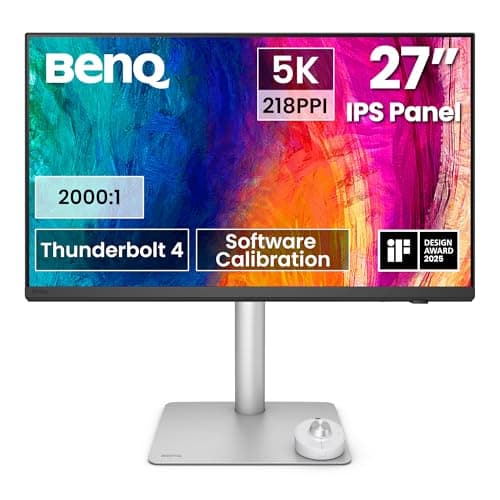
The PD2730S answers the most common monitor question in the M6 discussion threads: can you get genuine 5K resolution without paying Apple's premium? It is a 27-inch 5K panel at the pixel density macOS was designed around, covering 98% of the P3 color space. Text therefore renders as crisply as on Apple's own display. BenQ lists Thunderbolt 4 with 90W charging, daisy chaining and a KVM, and that KVM separates it from the Studio Display. Discussing an ASUS ProArt monitor, a Mac Power Users member called its integrated KVM "so, so, so handy when you have two computers that need to share a workspace." For a Mac mini desk that also hosts a company laptop, the switch eliminates a separate KVM box and a second keyboard. It has no webcam, so video calls require a separate camera. Compared to the Studio Display, it exchanges the camera and speakers for a KVM and, in MacRumors' words, a more accessible price point. That is the better arrangement for a two-computer desk.
What We Love
- True 5K at 27 inches, the same Retina sharpness class as the Studio Display.
- Built-in KVM shares one keyboard and mouse with a work laptop.
- Thunderbolt 4 with 90W charging and daisy chain over one cable.
What Could Be Better
- No built-in webcam, and the Mac mini has none either, so calls need a camera.
- 60Hz panel: fine for work, not for fast motion.
The Verdict
If you've shortlisted the Studio Display but also dock a work laptop, the BenQ PD2730S 27" 5K fits the brief. You keep true 5K sharpness, add a KVM, and pay what MacRumors calls a more accessible price. Against the Studio Display it gives up the camera and speakers. A separate webcam covers that.
Big sensible-money 4K: BenQ MA320U 32" 4K
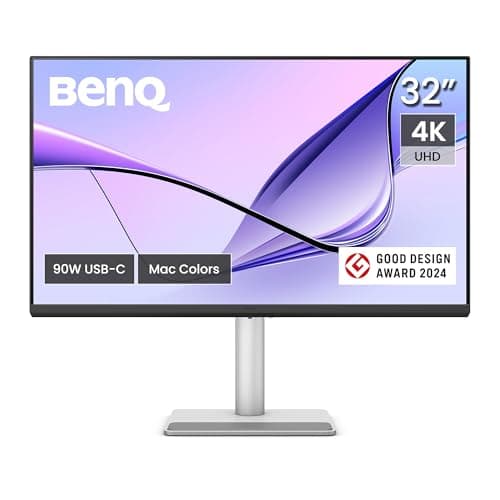
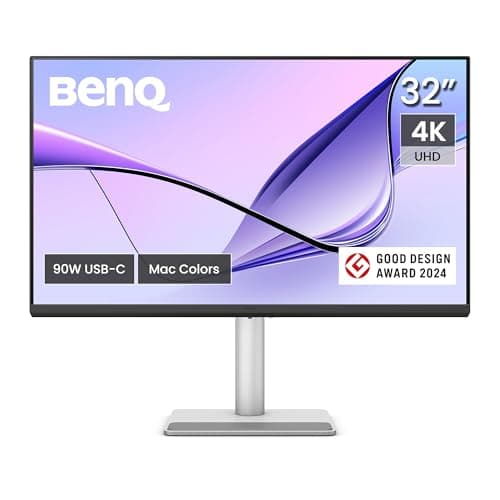
TechRadar's reviewer was direct: "the glorious 32-inch 4K BenQ MA320U stands out as the top pick." Macworld adds the connection detail that matters most on a Mac mini. In its words, "There are no DisplayPort connectors, but one of the USB-C ports supports DisplayPort for video input when connected to a Thunderbolt port on your Mac." In practice, a single USB-C cable from a rear Thunderbolt port delivers the picture. Display Pilot 2 then maps brightness and volume to the Mac keyboard, a small daily convenience most external monitors lack. Color coverage reaches 97% of Display P3 and 99% of sRGB, respectable for photo browsing and general creative work. Macworld's overall assessment describes an attractive, affordable display for home or office use rather than a rival to professional reference monitors. Sharpness is the limiting factor, because a 32-inch 4K panel sits below macOS's Retina density and most owners therefore run a scaled resolution. The image looks good, just less crisp than 5K, and that softness is the trade you accept for what Macworld calls an affordable display.
What We Love
- TechRadar's top pick among monitors for the Mac mini.
- Display Pilot 2 lets the Mac keyboard adjust brightness and volume.
- USB-C with 90W Power Delivery plus a USB hub for keyboard and mouse.
What Could Be Better
- 4K at 32 inches runs at a scaled resolution, softer than true 5K Retina.
- No DisplayPort connectors; video comes in over USB-C (Macworld).
The Verdict
If you want a big, calm screen and would rather put the savings toward the Mac, the BenQ MA320U 32" 4K is a sensible pick for that setup. TechRadar rates it the top Mac mini monitor, and the Mac brightness keys just work. The cost of that value is text that looks slightly softer than on a true 5K panel.
32-inch 6K with Auto KVM: ASUS ProArt PA32QCV 32" 6K
ASUS ProArt PA32QCV 32" 6K
(Current price, subject to change)
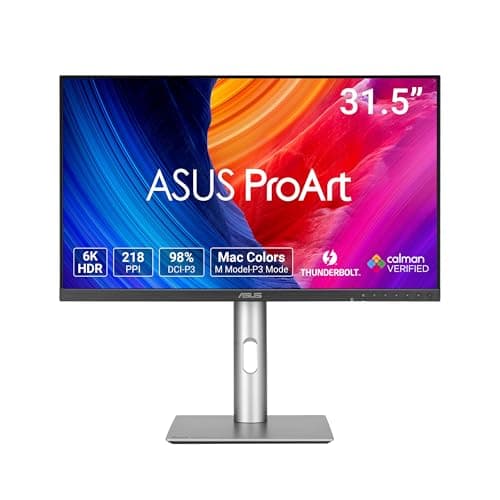
The PA32QCV is the answer when 27 inches feels cramped but scaled 4K feels soft. ASUS specifies a 6016x3384 panel at the same density macOS uses on Apple's own displays, so text and interface elements render at native Retina scaling across a larger canvas. The specification sheet adds 2x Thunderbolt 4 ports with 96W charging, 98% DCI-P3 coverage with factory calibration and Calman verification, and an Auto KVM for two connected devices. That KVM, the Expandability factor in practice, is the practical advantage for a Mac mini desk that also hosts a work laptop, because one keyboard and mouse serve both machines. Because the panel uses Thunderbolt 4, it operates at full speed on the M6 and gains nothing from the M5 Pro's Thunderbolt 5. Trade-review coverage of this model is thin in our research, and the RTINGS measurements could not be re-verified, so this recommendation relies on the published specifications. It suits the photographer or designer who wants two computers sharing one large, sharp display.
What We Love
- 32-inch 6K keeps Retina-class sharpness on a bigger canvas.
- Auto KVM moves keyboard and mouse between two connected computers.
- Factory calibrated and Calman Verified for color-critical work.
What Could Be Better
- Thunderbolt 4, not 5, so the M5 Pro's extra bandwidth goes unused.
- Built-in speakers are small, so plan on separate audio for calls or music.
The Verdict
If you work in large documents or timelines and share the desk with a work laptop, the ASUS ProArt PA32QCV 32" 6K checks the boxes that matter. It puts 6K at Retina density on 32 inches, Thunderbolt 4 and an Auto KVM in one panel. It suits a photographer or designer who wants more canvas than 27 inches and two computers on one keyboard.
Need USB-A back: CalDigit Thunderbolt Station 4 (TS4)
CalDigit Thunderbolt Station 4 (TS4)
(Current price, subject to change)
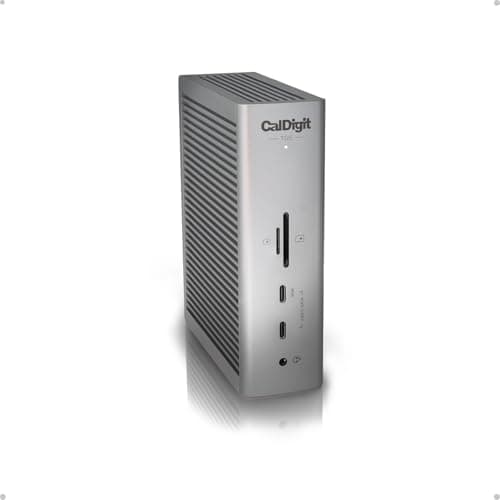
The missing USB-A port is the most predictable complaint about every recent Mac mini, and the TS4 is the cleanest remedy available for an M6. Over one host cable it adds 5x USB-A ports, 3x Thunderbolt 4 ports, 3x USB-C ports and 2.5Gb Ethernet. Because its Thunderbolt generation matches the M6 exactly, none of the bandwidth you are paying for sits unused. Two additional cautions keep expectations realistic. A dock never increases the display count Apple Support permits, so the TS4 reorganizes existing cables rather than accommodating an additional screen. A Mac-certified dock like this one is also a considerably safer choice than a borrowed corporate dock, for reasons explained in the ports section. External drives belong here rather than on a monitor's integrated hub, since the dock remains powered while the display sleeps. For an M6 desk that needs USB-A connectivity restored, this is the dock to choose.
What We Love
- Five USB-A ports put back what the Mac mini left out.
- Thunderbolt 4 matches the M6's ports, so no bandwidth sits unused.
- Runs two 6K displays or one 8K display from a single host cable.
What Could Be Better
- Thunderbolt 4 only; an M5 Pro owner gets more from the TS5.
- Its 98W laptop charging goes unused on a Mac mini desk.
The Verdict
If you're on the M6 and miss USB-A, the CalDigit Thunderbolt Station 4 (TS4) fits without compromise on the factor that matters here. You get plenty of ports at the Mac's own Thunderbolt speed. One cable in, and your drives, receivers and wired keyboards have a home. Buy this one for an M6 desk.
Thunderbolt 5 dock for the M5 Pro: CalDigit TS5 Thunderbolt 5 Dock
CalDigit TS5 Thunderbolt 5 Dock
(Current price, subject to change)
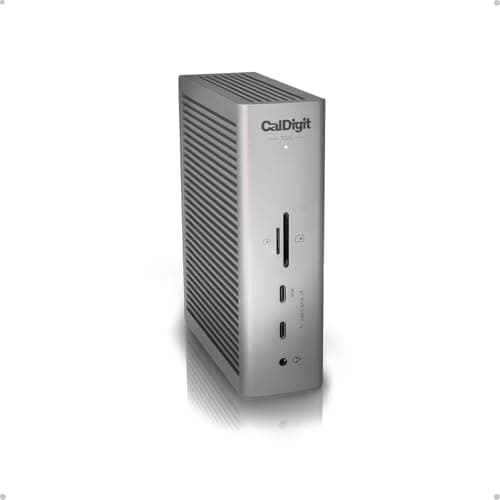
The TS5 is the dock that makes the M5 Pro's additional cost pay off. OWC, a vendor, explains the governing rule: Thunderbolt 5 accessories run at Thunderbolt 4 speed on the M6, so this dock only delivers its full capability on the M5 Pro. There it provides 4x Thunderbolt 5 ports, 3x USB-C ports, 2x USB-A ports, 2.5Gb Ethernet and SD plus microSD UHS-II readers behind a single cable. One important caveat deserves a direct explanation. AppleInsider's review of the related TS5 Plus carries an update noting "many reports of the CalDigit TS5 getting very hot," while stating the reviewers had not experienced the problem themselves. That evidence is secondhand, but it is a reasonable argument for giving the dock open ventilation rather than an enclosed shelf. Compared to the TS4, the TS5 sacrifices three USB-A ports in exchange for Thunderbolt 5 headroom and card readers. That trade suits an M5 Pro photography desk better than the TS4 does.
What We Love
- Thunderbolt 5 matches the M5 Pro, so fast drives and displays keep full speed.
- Resolutions up to 8K and 140W host charging from one cable (CalDigit).
- SD and microSD UHS-II readers plus 2.5Gb Ethernet for a photo workflow.
What Could Be Better
- AppleInsider relays owner reports of the TS5 running very hot, though it had not seen it.
- Only two USB-A ports, fewer than the TS4's five.
The Verdict
If you chose the M5 Pro for Thunderbolt 5, the CalDigit TS5 Thunderbolt 5 Dock lines up with what you actually need, keeping those fast ports fast downstream. Compared with the TS4, it trades three USB-A ports for double the Thunderbolt bandwidth and UHS-II card readers. That is a good swap for a photo or video desk.
How We Score: DeskGear Score
DeskGear Score
Score Formula
DeskGear Score = (Expert Consensus × 0.30) + (Effectiveness × 0.25) + (Build Safety × 0.20) + (Durability × 0.15) + (Value × 0.10)Score Factors
- Expert Consensus (30%)How strongly the trade-review, ergonomics-research, and specialist sources we cite endorse the product or its category. The single largest weight, because it is the only factor that doesn't depend on a single editor's judgment.
- Effectiveness (25%)Whether the product actually does what its category requires, judged against the functional standards described in the source stack (e.g., monitor color accuracy adequate for design work; chair adjustment range covering the body sizes the spec sheet advertises).
- Build Safety (20%)Electrical, material, and structural soundness for daily desk use: UL/ETL certification, off-gassing disclosures, BIFMA testing, wattage-handling claims, and known failure modes. A safety shortcoming caps the score regardless of effectiveness.
- Durability (15%)Build quality and longevity, triangulated from manufacturer documentation, brand warranty terms, and practitioner-community failure reports across multiple years of 8h/day use.
- Value (10%)Price relative to the field, on the dated lastProductCheck shown in every guide. Re-checked monthly; we update the score if the price-to-field relationship moves.
DeskGear Score — Ranked
CalDigit Thunderbolt Station 4 (TS4)
9.4/10The USB-A fix for an M6, at the Mac's own Thunderbolt 4 speed.
CalDigit TS5 Thunderbolt 5 Dock
9.4/10Thunderbolt 5 dock for the M5 Pro; heat reports relayed by AppleInsider are the caveat.
Samsung T9 Portable SSD 2TB
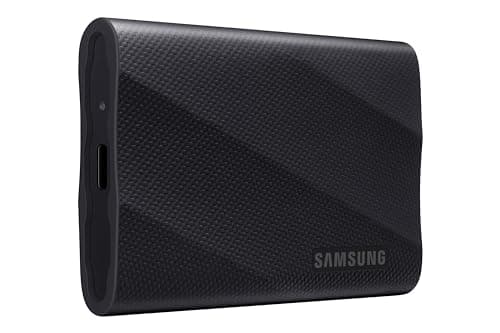
9.0/10Fast external storage for a small base SSD; plug it into the Mac or a dock, not a monitor hub.
BenQ PD2730S 27" 5K
8.8/10True 5K with a KVM; MacRumors calls it a more accessible alternative to the Studio Display.
BenQ MA320U 32" 4K
8.8/10TechRadar's top Mac mini monitor: scaled 4K on a big, affordable panel.
ASUS ProArt PA32QCV 32" 6K
8.8/1032-inch 6K at Retina density with an Auto KVM for a second computer.
Apple Mac mini (M6)
8.7/10Three displays on Thunderbolt 4 at the lowest current Mac mini price.
Ergotron LX Pro Monitor Arm
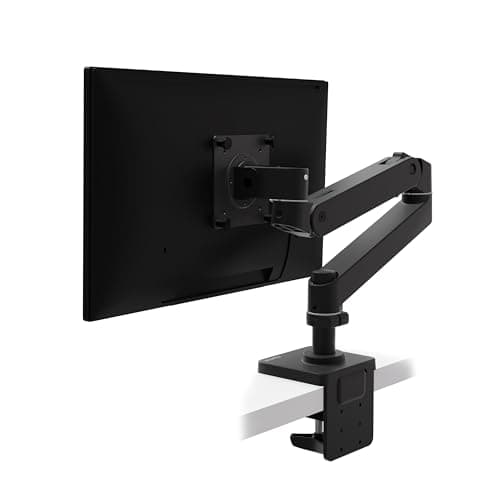
8.7/10Premium single arm that frees desk depth under a VESA screen.
Apple Mac mini (M5 Pro)
8.6/10Thunderbolt 5 brain, worth it once Thunderbolt 5 docks or panels join the desk.
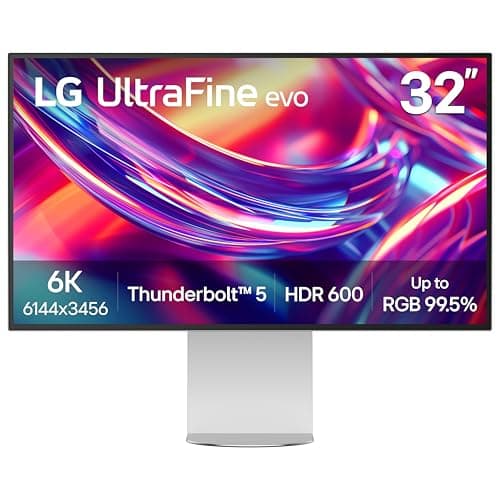
LG UltraFine 6K 32U990A
8.4/106K Thunderbolt 5 panel TechRadar names for maximum resolution, if you really want 6K.
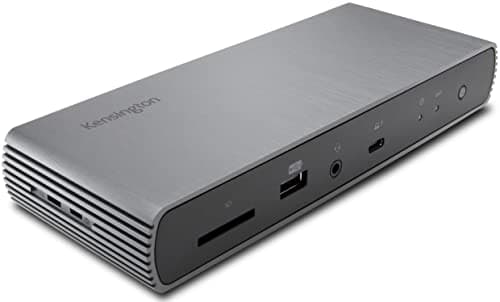
Kensington SD5700T Thunderbolt 4 Dock
8.4/10Thunderbolt 4 dock with four USB-A; discontinued by Kensington, still sold on Amazon.
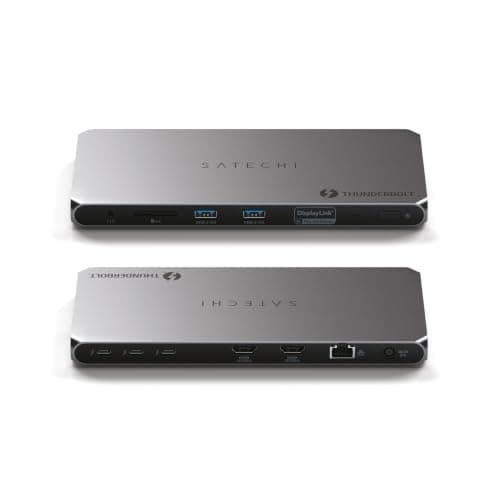
Satechi Thunderbolt 4 Docking Station
8.3/10Two HDMI outputs that need DisplayLink software, and only two USB-A ports.
Apple Studio Display (Standard Glass, VESA Mount Adapter)
8.1/10Cleanest one-cable 5K with camera and speakers; value pulls the score down.
Pick the Brain: M6 or M5 Pro
Both machines share one compact enclosure and one port layout: three rear Thunderbolt ports, HDMI and 2.5Gb Ethernet, plus two front USB-C ports and a headphone jack. The meaningful difference is Thunderbolt 4 versus Thunderbolt 5, because the M6 operates at 40Gb/s while the M5 Pro reaches up to 120Gb/s. Tom's Guide confirms a detail that surprises many purchasers: the front USB-C ports carry data only, with no video output. Neither model offers any USB-A connectivity, an omission PetaPixel and Gizmodo both highlight. Apple lists the M6 from $899 and the M5 Pro from $1,699, and the Amazon listings omit memory and storage details, so verify the configuration before purchasing. The DeskGear Composite Score does not weigh Thunderbolt generation as a separate factor, so judge the two machines by these ports rather than by their scores alone. If your displays and docking station use Thunderbolt 4, USB-C or HDMI, the M6 is entirely sufficient. Thunderbolt 5 equipment, or three high-refresh screens, is what lets the M5 Pro justify its additional price.
Apple Support document 148370 establishes the ceiling: the M6 Mac mini drives up to three external displays. Refresh rate is the deciding factor here. Two can run at 6K/60Hz or 4K/165Hz, while the third is limited to 5K over Thunderbolt or 4K over HDMI, both at 60Hz. The M5 Pro avoids that asymmetry entirely: Apple's specifications rate every one of its three external displays at up to 6K/60Hz or 4K/165Hz. Docks, hubs and daisy-chained monitors never increase that count, because they only change which cable carries which screen. The M4-era reports show where this limitation bites. A TidBITS Talk thread relayed one owner's experience that "the HDMI one is only recognised if I disconnect one of the Thunderbolt ones." On Apple Community, an M4 Pro owner said adding "the third 4K 120hz monitor" was "where the bug started to occur." A reply in that discussion observed that "DisplayPort derived from USB-C has FAR less bandwidth." The practical rule is straightforward: connect your two most demanding displays over Thunderbolt, keep the third within its lower specification, and check cables and refresh settings before blaming the computer.
The DeskGear Composite Score rates overall quality rather than macOS fit, so a high number alone does not mean a screen scales well. macOS looks sharpest on panels near 218 PPI, which is precisely what a 27-inch 5K or a 32-inch 6K display delivers. The Studio Display, BenQ PD2730S and ASUS PA32QCV belong to that group, and the LG UltraFine 6K 32U990A joins them with Thunderbolt 5 for an M5 Pro. TechRadar calls the LG "a solid 6K display" but warns that at its price you have to really want it. A 4K monitor at 27 or 32 inches falls between the resolutions macOS renders natively, so the operating system applies interpolated scaling. One Mac Power Users member driving BenQ's MA320UP from an M4 Pro mini usually runs "2304 X 1296," a workable desktop that is slightly less crisp. Another member offered a more concise recommendation: "If you can manage it, get a true 5K monitor." If typographic clarity dominates your working day, prioritize 5K or 6K. If affordability and physical size matter more, a scaled 4K display such as the BenQ MA320U is a respectable stopping point.
Neither Mac mini includes a USB-A port, so almost every desk needs a dock or a few adapters, and the dock should match the computer's Thunderbolt generation. On the M6, a Thunderbolt 4 dock uses the full available bandwidth, and the CalDigit TS4 is the full-featured choice. The Kensington SD5700T is an alternative with 4x USB-A ports (3x at 10Gbps) and a 3-year warranty, though it lacks HDMI or DisplayPort. Kensington has officially discontinued it, although Amazon continues selling it new. The Satechi Thunderbolt 4 Docking Station provides 2x HDMI outputs, 2x USB-A ports and a 2-year warranty. Macworld confirms those HDMI outputs only function with DisplayLink software installed. On the M5 Pro, the CalDigit TS5 preserves Thunderbolt 5 speed despite the heat reports AppleInsider relays. OWC notes that the same dock falls back to Thunderbolt 4 on an M6. Docks score well on the DeskGear Composite Score across the board, so the deciding factor is Thunderbolt generation, not the number. Two straightforward habits prevent the classic connectivity failures. Be wary of reusing a DisplayLink dock bought for a Windows laptop. One M4-era Apple Community owner plugged the Dell D6000 from their Windows laptop setup into a Mac mini and "discovered that the displays no longer worked." Keep drives off the monitor's USB hub, because, as a Mac Power Users reply explained, "USB ports on monitors shut down when the monitor goes to sleep."
Storage and a Monitor Arm
Apple's entry-level internal storage fills quickly, and PetaPixel considers the base SSD configuration limiting. The Samsung T9 Portable SSD 2TB is the straightforward remedy, a USB 3.2 Gen 2x2 portable drive. It belongs on a port on the computer or the dock, never on the monitor's integrated hub, for the sleep-related reason a Mac Power Users thread described. For the desk itself, the Ergotron LX Pro Monitor Arm frees the surface beneath a VESA display. It also provides one way to mount the stand-less Studio Display version linked in this guide. The Amazon listing rates it for monitors up to 34 inches and 4 to 22 lbs, so compare that range against your particular monitor's specifications before ordering.
When NOT to Buy
Stub WNTB (Block 3B fallback).
Who Should Buy What
Who Should Buy What
| If you are… | Recommended pick |
|---|---|
Cleanest one-cable desk You want one cable, a built-in camera and speakers, and an all-Apple desk more than a KVM. | Apple Studio Display (Standard Glass, VESA Mount Adapter) |
True 5K plus KVM for a work laptop You want 27-inch 5K sharpness and a KVM so a work laptop shares the keyboard and mouse. | BenQ PD2730S 27" 5K |
32-inch 6K with Auto KVM You want 32 inches at Retina density, calibrated color, and automatic switching between two computers. | ASUS ProArt PA32QCV 32" 6K |
Big sensible-money 4K You want a large 4K screen on a sensible budget and can live with scaled macOS text. | BenQ MA320U 32" 4K |
Need USB-A back on an M6 You own the M6 and need USB-A for drives, receivers or keyboards behind one Thunderbolt cable. | CalDigit Thunderbolt Station 4 (TS4) |
Thunderbolt 5 dock for an M5 Pro You own the M5 Pro and want Thunderbolt 5 speed, card readers and fast storage downstream. | CalDigit TS5 Thunderbolt 5 Dock |
Frequently Asked Questions
How many external displays can the Mac mini M6 run, and does refresh rate change that?
Up to three, according to Apple Support document 148370, and refresh rate decides how they split. Two screens can run at 6K/60Hz or 4K/165Hz, while the third is limited to 5K/60Hz over Thunderbolt or 4K/60Hz over HDMI. That means a trio of 165Hz monitors will not all run at full refresh. No dock, hub or daisy chain takes the count past three.
Should I get the M6 or the M5 Pro Mac mini for a multi-monitor desk?
Both run three external displays, but the M6 caps its third at 5K/60Hz or 4K/60Hz, while the M5 Pro runs all three at up to 6K/60Hz or 4K/165Hz. Beyond that, choose by the gear you will plug in. If your monitors and dock are Thunderbolt 4, USB-C or HDMI, the M6 runs them at full speed and leaves more budget for the screen. The M5 Pro earns its premium once three high-refresh screens, Thunderbolt 5 docks, Thunderbolt 5 panels such as the LG UltraFine 6K, or very fast external storage are part of the plan.
Why does my third monitor disconnect or go undetected on a Mac mini?
In M4-era reports, the usual culprits were port choice and bandwidth rather than a faulty Mac. Owners on TidBITS Talk and Apple Community saw an HDMI screen vanish until a Thunderbolt one was unplugged, or a third high-refresh 4K screen start glitching. Keep the third display inside its lower limit, use certified Thunderbolt cables, and lower refresh on one screen before assuming a hardware fault. No M6 owner has reported the problem yet, but the M6 uses the same port layout.
Is a 4K monitor good enough for a Mac mini, or do I need 5K?
A 4K monitor works well, but macOS will run it at a scaled resolution, so text looks slightly softer than on a Retina panel. True 5K at 27 inches or 6K at 32 inches lands at roughly 218 PPI, where macOS renders at its native sharp scaling. If you read code or documents all day, the difference is noticeable. For spreadsheets and browsing on a budget, a good 4K is fine.
The Mac mini has no USB-A. What is the cleanest fix, a dock or adapters?
For more than two or three USB-A devices, a Thunderbolt dock is cleaner, since everything sits behind one cable and stays connected when the monitor sleeps. For a single wireless receiver or one old drive, a small USB-C to USB-A adapter on a front port costs far less. Whichever you choose, match a dock to your Mac's Thunderbolt generation so you aren't paying for speed it cannot use.
Will my work laptop's dock work with a Mac mini?
Possibly not. An M4-era Mac mini owner on Apple Community connected the Dell D6000, a DisplayLink dock from their Windows laptop setup, and found the displays stopped working. The safer setup is to connect monitors directly to the Mac mini's Thunderbolt or HDMI ports and use a borrowed dock, if at all, only for USB devices. If the desk must serve both machines, a monitor with a built-in KVM is the cleaner route.
Why do drives plugged into my monitor disconnect when it sleeps?
Many monitors power down their built-in USB ports when the screen sleeps, which unmounts any drive attached to them, as a Mac Power Users reply explained. One Mac mini owner in the same thread said the problem stopped after connecting the display over HDMI instead. The simplest fix is to move drives to a port on the Mac mini or a Thunderbolt dock, which stays powered while the display sleeps.
Is the Studio Display worth it for a Mac mini, or is a 5K/6K alternative better?
It is worth it if you will use the built-in camera, microphones and speakers every day, since the Mac mini has no camera or microphone of its own. If you won't, the BenQ PD2730S gives the same 5K sharpness with a KVM at what MacRumors calls a more accessible price, and the ASUS ProArt PA32QCV gives 32 inches at 6K. TechRadar's view sums up the trade: excellent as an all-in-one, but pricey.
Do Thunderbolt 5 docks work on the M6 Mac mini?
Yes, but at Thunderbolt 4 speed. OWC, which sells Thunderbolt gear, notes that Thunderbolt 5 docks and devices fall back to Thunderbolt 4 on the M6. Buying one can still make sense if you plan to move to a Thunderbolt 5 Mac later. For a desk that will stay on the M6, a Thunderbolt 4 dock gives the same real-world result, usually for less.
Can the front USB-C ports on the Mac mini drive a monitor?
No. Tom's Guide confirms the two front USB-C ports on the M6 Mac mini carry data only, with no video output. Use the rear Thunderbolt ports or HDMI for monitors, and keep the front ports for drives, card readers or a phone cable.
Bottom Line
Get the Apple Mac mini (M6) if You want three displays on a Thunderbolt 4 desk and would rather spend the difference on a better screen..
Get the Apple Mac mini (M5 Pro) if Thunderbolt 5 docks, Thunderbolt 5 panels or very fast external storage are already part of your plan..
Get the Apple Studio Display (Standard Glass, VESA Mount Adapter) if You want one cable, a built-in camera and an all-Apple desk, and price is not the deciding factor..
Get the BenQ MA320U 32" 4K if You want a big 4K screen at a sensible price and don't mind scaled macOS text..
Get the CalDigit Thunderbolt Station 4 (TS4) if You're on the M6 and need USB-A back behind a single Thunderbolt cable..
Get the CalDigit TS5 Thunderbolt 5 Dock if You're on the M5 Pro and want the dock to keep Thunderbolt 5 speed downstream..
You need a machine that travels, or you'd rather not buy a screen, camera and keyboard separately; a MacBook or an all-in-one is simpler.
Sources & Methodology
Methodology: DeskGear Score — Formula: DeskGear Score = (Expert Consensus × 0.30) + (Effectiveness × 0.25) + (Build Safety × 0.20) + (Durability × 0.15) + (Value × 0.10). Factors: Expert Consensus (30%): How strongly the trade-review, ergonomics-research, and specialist sources we cite endorse the product or its category. The single largest weight, because it is the only factor that doesn't depend on a single editor's judgment. | Effectiveness (25%): Whether the product actually does what its category requires, judged against the functional standards described in the source stack (e.g., monitor color accuracy adequate for design work; chair adjustment range covering the body sizes the spec sheet advertises). | Build Safety (20%): Electrical, material, and structural soundness for daily desk use: UL/ETL certification, off-gassing disclosures, BIFMA testing, wattage-handling claims, and known failure modes. A safety shortcoming caps the score regardless of effectiveness. | Durability (15%): Build quality and longevity, triangulated from manufacturer documentation, brand warranty terms, and practitioner-community failure reports across multiple years of 8h/day use. | Value (10%): Price relative to the field, on the dated lastProductCheck shown in every guide. Re-checked monthly; we update the score if the price-to-field relationship moves.
Expert review sources used in this analysis:
- We compared findings from Apple Support's Mac mini display documentation, TechRadar's guide to monitors for the Mac mini and Macworld's BenQ MA320U review
- We also drew on Tom's Guide's Mac mini M6 review, AppleInsider's CalDigit TS5 Plus review, and the M6 reviews from PetaPixel and Gizmodo
- Owner reports come from Mac Power Users, TidBITS Talk and Apple Community threads, most of them from the M4 era
- OWC's Thunderbolt guidance is a vendor source
- Mac mini list prices come from Apple, and product-card prices and availability were checked on Amazon on 2026-09-29.
Nicholas Miles is the founder of DeskGearHQ and a longtime smart home enthusiast focused on helping everyday homeowners make better technology decisions. He researches, compares, and writes about products across security, climate, lighting, leak prevention, sensors, home energy, and automation, with an emphasis on real-world usefulness, ecosystem compatibility, reliability, privacy, and long-term value.
Affiliate disclosure: DeskGearHQ earns affiliate commissions on qualifying Amazon purchases. Our scoring methodology is independent of affiliate relationships.